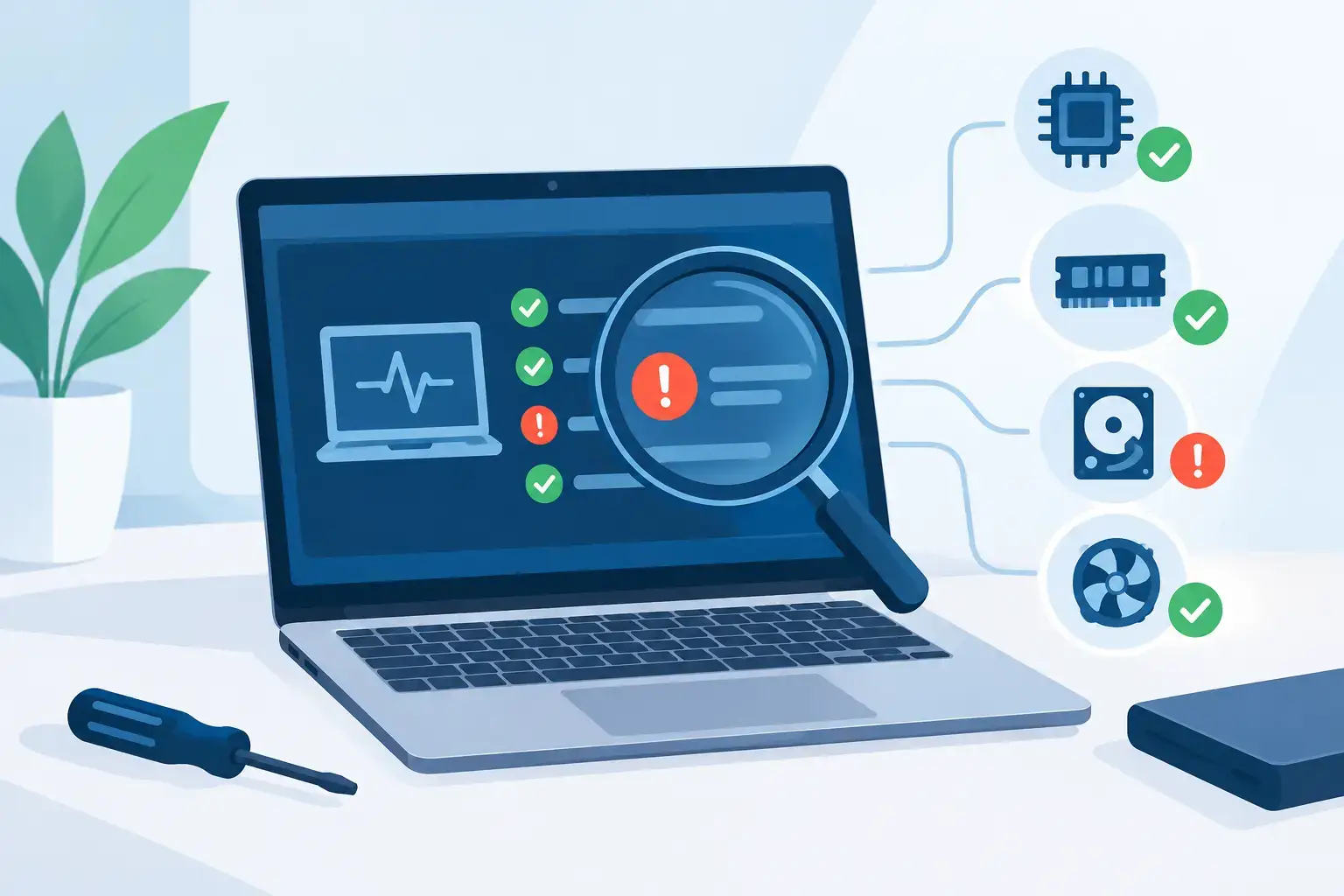
A laptop that will not start before an online class, a MacBook that shuts down during work, or an office PC that keeps losing WiFi can look like a simple problem. It rarely is. Proper computer diagnostics identify the actual cause before a repair begins, protecting your data, avoiding wasted parts, and getting you back to work with a stable device rather than a temporary patch.
For customers in Dubai, speed matters, but accuracy matters just as much. Replacing a battery will not fix a charging-circuit fault. Reinstalling Windows will not solve a failing SSD. Cleaning malware may not stop repeated crashes caused by overheating memory or a damaged motherboard. A diagnostic-led repair process separates the symptom from the fault.


What Computer Diagnostics Actually Checks
Computer diagnostics are a structured set of tests used to determine why a device is slow, unstable, damaged, or unable to start. The technician checks both hardware and software because many faults produce similar symptoms.
For example, a blue-screen error may come from corrupted system files, a failing drive, defective RAM, an outdated driver, or heat-related instability. A laptop that does not charge might have a worn battery, a damaged charger, a loose DC jack, a USB-C charging issue, or a board-level power fault. Guessing is expensive. Testing narrows the repair to what the device genuinely needs.
A professional assessment usually starts with the customer’s description of the issue. When did it begin? Did the laptop fall, get wet, receive an update, or start overheating? Does the problem happen only when charging, gaming, joining a video call, or using a particular application? These details help technicians choose the right tests instead of treating every fault the same way.
The device is then checked for physical damage, liquid indicators, loose ports, swollen batteries, blocked vents, screen faults, and signs of previous repair work. Internal inspections may include battery health, storage condition, RAM performance, fan operation, thermal condition, and motherboard power behavior. On the software side, testing can cover startup errors, operating-system integrity, driver conflicts, malware activity, BIOS settings, network configuration, and application failures.
Common Problems Diagnostics Can Reveal
Some issues are obvious, such as a cracked display or broken charging port. Others are hidden behind symptoms that can easily lead to the wrong repair.
Slow performance is not always a software problem
A slow laptop may need a cleanup, malware removal, or operating-system repair. But it can also be limited by an aging hard drive, insufficient memory, high temperatures, a failing SSD, or too many startup processes. A diagnostic check shows whether an SSD upgrade, RAM upgrade, cooling service, or software repair will make the biggest difference.
This is particularly useful for students, remote workers, and professionals using older laptops for meetings, large files, design software, or business applications. A targeted upgrade often costs less than replacing a device that still has years of useful life.
Random shutdowns often point to heat or power issues
If a computer shuts down without warning, do not assume the battery is the only cause. Excessive heat can force a system to turn off to prevent component damage. Dust-clogged fans, dried thermal paste, failed cooling systems, demanding applications, and internal board faults can all contribute.
A thermal audit checks temperatures under load and confirms whether the fan responds correctly. This is especially valuable for gaming PCs, workstations, and laptops used for video editing or long gaming sessions. Better cooling, correct fan settings, cable management, and BIOS configuration can improve stability, but only after the source of the heat is confirmed.
Startup failure can involve the drive, BIOS, or motherboard
A black screen, flashing power light, repeated restart cycle, or “no boot device” message can be alarming, particularly when important files are stored on the device. The cause may be as simple as a damaged operating system or incorrect boot setting. It may also be a failed drive, memory issue, power fault, or motherboard problem.
Careful testing helps determine whether data can be recovered before repairs or reinstallation are attempted. If the storage device is failing, repeated restarts or do-it-yourself repair attempts may make recovery more difficult. When the data matters, protect it first.
Liquid damage needs deeper testing than a quick power-on
A laptop that works after a spill is not necessarily safe. Liquid can leave corrosion that causes intermittent keyboard problems, charging faults, trackpad failures, and motherboard damage days or weeks later. Powering on a wet device can create further short circuits.
The right response is to switch it off, disconnect power, avoid charging it, and arrange an inspection as soon as possible. Diagnostics after liquid damage should include internal examination, corrosion assessment, power-rail testing, keyboard and port testing, and a check of critical data. Drying alone is not a repair process.
Why a Diagnostic-Led Repair Saves Time and Money
The lowest initial price is not always the lowest total cost. A repair based on assumptions can mean paying for a part that does not resolve the issue, followed by more downtime and another repair visit. Diagnostic-led service may take slightly longer at the beginning, but it reduces unnecessary replacements and makes the repair plan clearer.
It also supports transparent communication. Once testing is complete, you should know what failed, what repair is recommended, whether your data is at risk, and whether repairing the device is financially sensible. Sometimes the best solution is a component-level repair. Other times, an SSD or battery upgrade is the practical answer. For an older device with extensive motherboard damage, replacement may be the more responsible recommendation.
That judgment depends on the device’s age, specifications, repair cost, and your daily needs. A student with a reliable older laptop may benefit from a focused upgrade. A business with a workstation holding essential records may prioritize data recovery and minimal downtime. A gamer may need a thermal and power assessment before investing in a new GPU or CPU.
Computer Diagnostics for Offices and Small Businesses
For a business, a computer issue is rarely limited to one machine. A slow workstation may affect accounting, customer orders, email access, cloud files, and staff productivity. An unstable network may look like a PC problem when the real issue is WiFi coverage, router configuration, cabling, DNS settings, or overloaded hardware.
Business diagnostics should consider the full working environment: computers, user accounts, Microsoft Office and email configuration, printers, network access, backup status, endpoint security, and cloud synchronization. The aim is not simply to make one computer turn on. It is to restore reliable operations and reduce the chance of the same disruption returning next week.
For startups and growing teams, recurring IT maintenance can catch issues before they become emergencies. Storage health checks, backup verification, operating-system updates, network reviews, and workstation monitoring all help prevent avoidable downtime. There is a trade-off: proactive support is an ongoing cost, but it is often far less disruptive than a sudden system failure during a busy workday.
What to Do Before You Bring in Your Device
If your laptop or desktop is still working, back up important files immediately. Save documents to a secure cloud location or external drive, but do not force a backup if the device is making clicking sounds, repeatedly crashing, or showing signs of drive failure. In those cases, continued use can increase the risk of data loss.
Write down the error messages you see and note what happened before the issue started. Bring the charger if charging or power is involved. For a business device, provide any necessary login details through a secure, agreed process and identify the files or applications that must remain available.
Avoid opening the device, installing random repair utilities, or repeatedly reinstalling the operating system before an assessment. These actions can hide evidence of the original fault, overwrite recoverable data, or complicate a warranty claim. A qualified technician can decide whether software repair, hardware replacement, board-level work, or data recovery should come first.
Trust IT Skills uses diagnostics to give Dubai customers a clear repair path for laptops, MacBooks, desktops, gaming PCs, and office systems. If your device is slowing down, overheating, failing to start, or putting important data at risk, getting the real fault identified early is the fastest way to make a confident next decision.