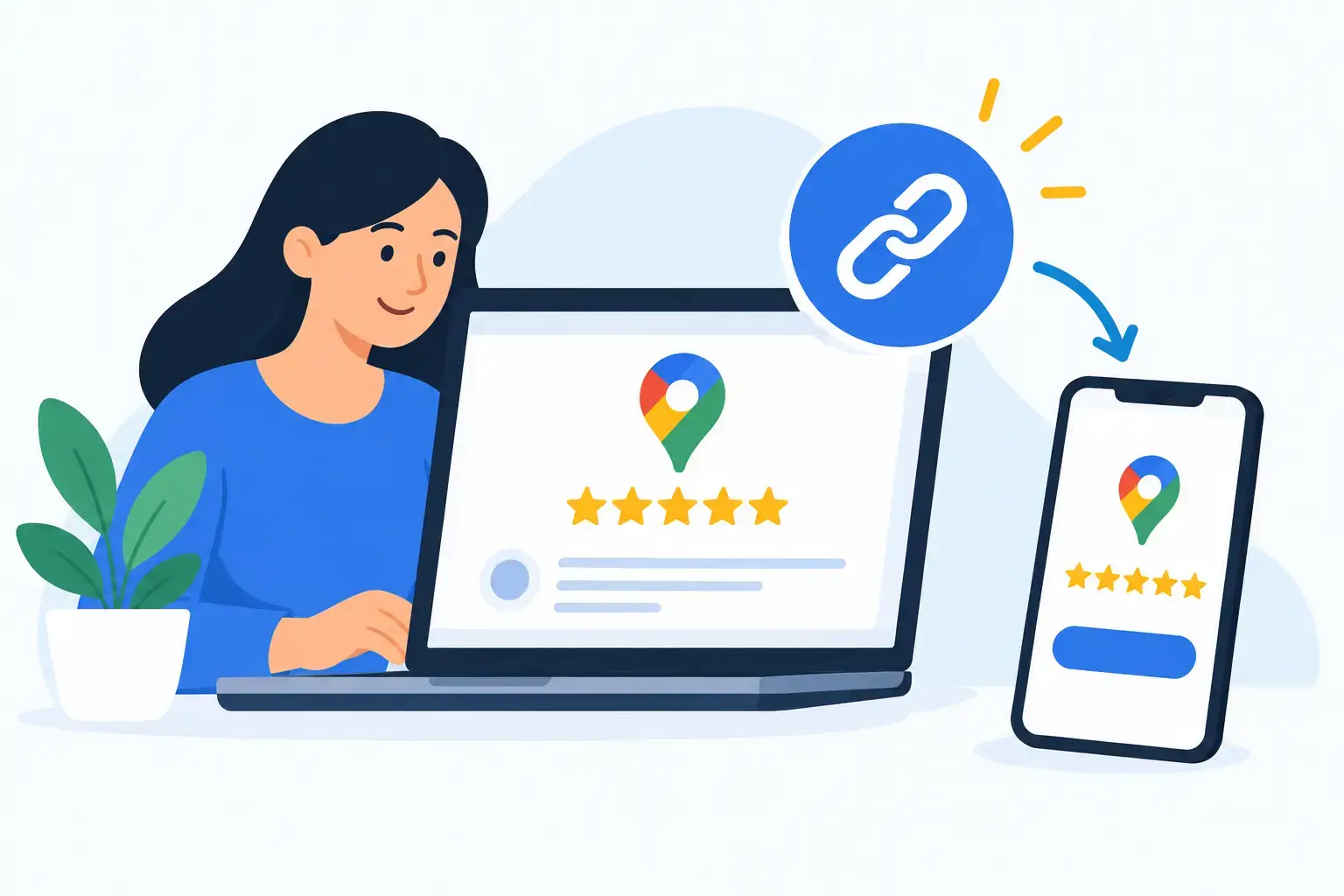
A great customer walks out happy, says they will leave a review, and then life takes over. By the time they get home, the moment has passed. A smart Google review link setup changes that timing. It gives customers one clear action while the experience is still fresh: scan a QR code or tap their phone and leave feedback directly on Google.
For restaurants, clinics, salons, hotels, retail stores, and service businesses, this is not a minor convenience. Reviews influence where people book, eat, shop, and call. More recent, authentic feedback can strengthen trust, support local visibility, and give the next potential customer a reason to choose you.

Why a direct review link matters
A customer should not have to search for your business, sort through similarly named listings, or remember to return later. Every extra step reduces the number of people who finish the process.
A direct Google review link removes that friction. Instead of sending someone to a general search result or your Google Business Profile, it opens the review flow for the correct location. The experience is quick, clear, and easy to explain: “If you enjoyed your visit, please leave us a review with a simple scan or tap.”
That simplicity also helps your team. Staff do not need to memorize complicated instructions, pass around a tablet, or interrupt a checkout conversation. Your physical review display does the prompting in a polished, consistent way.
Google review link setup: get the right destination
Your first job is to create or retrieve the review-request link associated with the correct Google Business Profile. This is especially important if you operate multiple locations. A link for your downtown office should not send customers to your suburban office, even if both use the same brand name.
Start with a verified Google Business Profile
Sign in to the Google account that manages your Business Profile. Search for your business on Google, or use the profile management tools connected to that account. Look for the option to ask for reviews or share a review form. Google provides a dedicated link that leads customers into the review experience for that listing.
Copy that link exactly. Avoid relying on a browser address copied from a generic Google search, because it may not open the review form directly. The goal is a destination that asks for feedback, not a page that requires the customer to find the right button.
If you manage several locations, create a clear naming system before moving forward. Label each link by location, such as “Northside Dental – Google Reviews” or “Main Street Café – Google Reviews.” This small organizational step prevents expensive confusion when you are assigning links to physical tags, cards, or stands.
Test the link like a customer would
Before printing a QR code or programming an NFC product, test the destination on more than one phone. Open it outside of your business account when possible. Confirm that it points to the correct business, requests a review, and works on both iPhone and Android devices.
Testing matters because a link can appear correct to an administrator who is already signed in, but create a different experience for a customer. Check it on mobile data as well as Wi-Fi. If your guest Wi-Fi has a login page, a customer may not be able to use it immediately, so the review request should still work through their cellular connection.
A good test takes less than five minutes. Fixing a misplaced link after custom displays have been distributed is much harder.
Turn the link into a tap-or-scan moment
The link itself is only half of the setup. The other half is putting it where a satisfied customer is most likely to act.
A QR code lets customers scan with their camera. NFC lets them tap a compatible phone against a tag, card, coaster, plaque, or stand. Both methods can lead to the same Google review link. Offering both is often the strongest approach because customers can use the interaction they prefer.
ReviewsLink products can be assigned after purchase, which gives businesses flexibility when opening a new location, changing a profile, or preparing a custom campaign. Once the destination is assigned, the physical item becomes an always-ready review prompt without requiring a staff member to pull up a link each time.
Match the format to the customer moment
Placement should feel natural, not pushy. A restaurant may place review coasters or table tents near the end of a meal, then add a premium stand by the register for guests who pay at the counter. A dental office can use an elegant desk plaque at checkout, where patients are already confirming their next appointment. A salon may use mirror stickers, NFC cards at the front desk, or branded hang tags attached to retail products.
The best placement depends on your service flow. A business with a long checkout line may benefit from a visible counter display that customers can use while waiting. A hotel may get better results from a discreet card or plaque near the reception desk, after a positive check-out conversation. A home service company may use a keyring or smart tag that technicians can present after completing the job.
Keep the message short. “Loved your visit? Tap or scan to review us on Google” is enough. Customers should understand the action in a glance.
Ask at the right time, not every time
The most effective review request is timely and earned. Ask after the meal was enjoyed, the treatment was completed, the repair was finished, or the purchase was successfully resolved. The customer should be able to connect the prompt with a real experience.
Train staff to notice positive moments. If a guest compliments the service, a receptionist can respond, “Thank you, we appreciate that. If you have a moment, you can tap the stand here to leave a Google review.” That feels more personal than repeating the request to every person with the same script.
At the same time, make your displays visible enough to work without a conversation. Some customers are happy to review but prefer to do it privately. An elegant, branded review display gives them that option without adding pressure.
Protect your reputation with Google-friendly practices
A high-performing setup should be simple and compliant. Ask for honest feedback from real customers. Do not offer discounts, gifts, entries, or other incentives in exchange for Google reviews. Incentivized feedback can undermine trust and may conflict with platform policies.
Do not review-gate. That means you should not direct only happy customers to Google while routing unhappy customers somewhere else. Every customer should have the same opportunity to leave feedback. If someone raises a concern in person, handle it with care, but do not use the review process to filter out criticism.
You also should not pressure people to give a five-star rating. Ask for a review, not a specific score. Genuine language protects the credibility that makes reviews valuable in the first place.
Measure whether your setup is working
Review collection is not a one-time task. Check your Google Business Profile regularly for new reviews, rating trends, recurring compliments, and operational issues that need attention. A steady flow of recent feedback is generally more useful than a sudden burst followed by months of silence.
Compare results by location and placement. If one stand at the front counter generates more reviews than a card by the exit, you have learned something practical about customer behavior. If table tents perform well during weekend service but not weekday lunch, adjust the message or placement rather than assuming the product is the problem.
You can also rotate formats based on your environment. A luxury clinic may prefer a branded plaque that complements its reception area. A busy café may need durable stickers and compact table tents. The destination stays the same, but the presentation should fit the brand experience.
Common setup mistakes to avoid
The most common mistake is using a general business-page link rather than the direct review link. Customers may still reach your profile, but many will not take the extra step needed to write feedback.
Another mistake is placing the QR code where customers cannot comfortably scan it. A low counter, poor lighting, a cluttered checkout area, or a display facing the wrong direction can quietly reduce participation. Put the call to action at eye level when possible, keep it unobstructed, and test it from the customer’s standing position.
Finally, do not treat the display as decoration. Review requests perform best when the physical prompt, staff language, and customer experience all support the same message: your business values feedback and makes sharing it easy.
A well-planned Google review link setup turns the few seconds after a great interaction into a lasting business asset. Put the right link in the right place, ask with confidence, and make it effortless for customers to share what they already appreciated.