


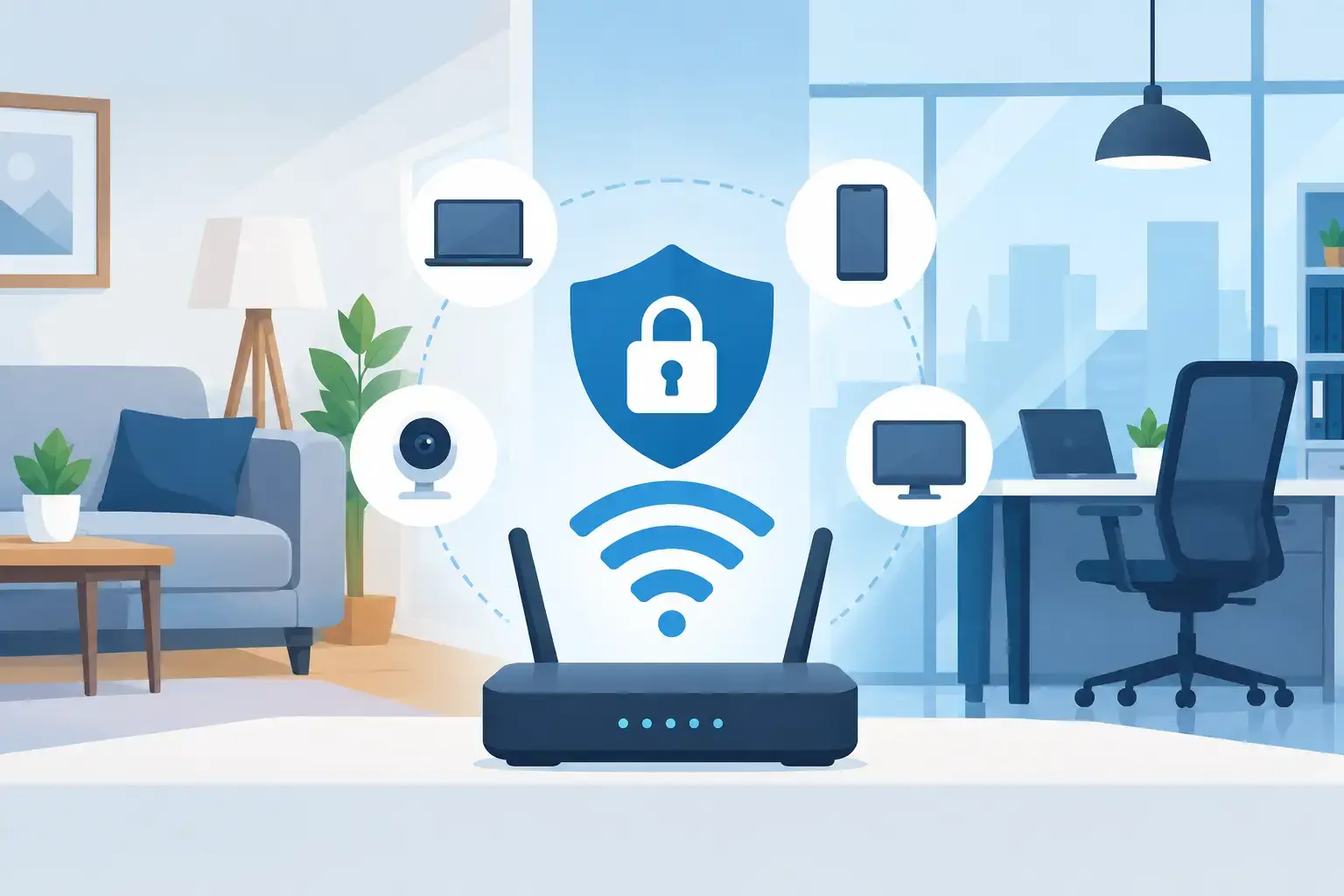
Your router is the front door to every laptop, phone, smart TV, printer, camera, and business file connected to your network. Weak WiFi security can let an unauthorized person use your internet connection, access shared devices, intercept poorly protected traffic, or create a path toward sensitive data. For a home user, that may mean a compromised laptop or unknown devices on the network. For an office, it can mean disrupted work, exposed client information, and expensive downtime.
The good news is that most network security problems start with settings that can be corrected. You do not need to be a network engineer to make meaningful improvements, but you do need to handle the router as a critical piece of equipment, not a box that was installed once and forgotten.


WiFi Security Starts With Router Access
Many routers still run with a default administrator username and password. That is different from the password people use to join the WiFi network. The administrator login controls the router itself, including its security settings, DNS settings, connected devices, and firmware updates. If someone gains access to it, changing the WiFi password alone may not remove the risk.
Log in to the router’s management page and replace the default administrator password with a long, unique passphrase. Use a password manager if possible. Avoid a business name, apartment number, phone number, or anything visible on social media. If your router offers multi-factor authentication for administrator access, enable it.
Remote administration should usually be turned off. This setting allows the router control panel to be accessed from outside the network. It may be useful for a managed business network, but it should not be left enabled without a clear operational reason, strong credentials, and proper access controls.
Use WPA3 When Your Devices Support It
The encryption setting determines how your WiFi traffic is protected between your devices and the router. WPA3 is the preferred option on modern routers and devices. If WPA3 is unavailable or older laptops and printers cannot connect with it, WPA2-Personal with AES encryption remains a practical option for many homes and small offices.
Avoid WEP and WPA with TKIP. They are outdated security standards and should not be used for an active network. Some older devices may only connect through these weaker options. In that situation, replacing or isolating the old device is safer than lowering security for every other device.
Your WiFi password should be separate from the router administrator password. Make it long enough that it is difficult to guess, ideally a passphrase of several unrelated words with numbers or symbols where required. A short password can be convenient for visitors, but it creates a weak point that remains in place long after the visitor has left.
Separate Devices That Do Not Need to Trust Each Other
A single flat network puts every connected device in the same digital room. That is not always a problem for a small household, but it becomes risky when you add smart cameras, inexpensive plugs, personal phones, work laptops, guest devices, and network printers. A compromised smart device should not have easy access to the computer holding your business documents.
Start with a separate guest network for visitors. Give it a different password and prevent guest devices from seeing devices on the main network if your router supports client isolation. This keeps a visitor’s phone or laptop from directly browsing shared folders, printers, or other local equipment.
For a small business, consider separate networks or VLANs for staff devices, guests, smart devices, and critical equipment such as servers or point-of-sale systems. The right design depends on the router and the number of devices, but the principle is simple: devices should only be able to reach what they genuinely need.
A home office may benefit from the same approach. Your work laptop, backup drive, and personal computer can stay on the primary network, while smart speakers, streaming devices, and guest phones use a separate network. This does not make a network invulnerable, but it limits how far a problem can spread.
Keep the Router and Devices Updated
Router firmware updates repair known security flaws, improve stability, and sometimes add support for stronger encryption. Check the router manufacturer’s app or management page for updates, then enable automatic firmware updates when available. If a router is no longer receiving security updates, it may be time to replace it even if the WiFi signal still appears to work.
The same rule applies to laptops, Macs, phones, and tablets. An up-to-date router cannot protect a computer with an unpatched operating system, weak login password, or active malware infection. Install operating system updates, browser updates, and security updates promptly, especially on devices used for online banking, remote work, or company email.
For office networks, update planning needs a little more care. Firmware changes can occasionally affect older printers, VPN connections, or specialized business software. Schedule updates outside peak hours, confirm that cloud backups are current, and test key services afterward. Security and business continuity must work together.
Disable WPS and Review Convenience Features
WPS, or WiFi Protected Setup, was designed to make connecting devices easier through a push button or PIN. The convenience is not worth the exposure on most networks. Disable WPS unless there is a specific device that requires it, and turn it back off once setup is complete.
Review other convenience features as well. Universal Plug and Play, known as UPnP, can automatically open network ports for games and applications. It can be useful, particularly for gaming consoles, but it also reduces control over what is exposed. Use it only when needed, and review port-forwarding rules regularly. Remove entries that no longer serve an active application or device.
Hiding the network name, also called the SSID, is not real protection. Determined users can still identify a hidden network, while legitimate users may have more trouble connecting. A visible network name with strong encryption and a strong password is the better approach. Do not include your full name, unit number, or company name in the SSID.
Watch for Unknown Devices and Warning Signs
Checking the list of connected devices should become a regular habit, especially after sharing the password with guests, contractors, or former staff. Most routers show connected devices in their app or administration page. Rename familiar devices where possible so you can quickly spot something unusual.
An unfamiliar device does not always mean an attacker. Phones may display a generic manufacturer name, and smart devices can be hard to identify. Before blocking a device, compare its MAC address or temporarily disconnect known equipment to narrow it down. If you cannot identify it, change the WiFi password, remove the device, and review router administrator access.
Pay attention to practical warning signs: internet performance suddenly drops, the router settings change without approval, browser searches redirect unexpectedly, devices display security alerts, or users report repeated login prompts. These symptoms can have several causes, including a failing router, overloaded WiFi channels, malware, or an ISP issue. The answer is not always a security breach, which is why diagnosis matters before making major changes.
Protect Work Data Beyond the Wireless Network
WiFi security is one layer, not the whole security plan. A well-configured network cannot stop an employee from entering credentials into a fake Microsoft 365 page, opening a malicious attachment, or using the same password across multiple accounts. For businesses, multi-factor authentication, secure email configuration, endpoint protection, restricted user permissions, and tested cloud backups are equally necessary.
Remote workers should be cautious on public WiFi in hotels, cafes, airports, and shared workspaces. Use websites with HTTPS, keep devices updated, and avoid accessing sensitive accounts from an unknown network when possible. A VPN can add privacy on untrusted networks, but it is not a replacement for patching devices, using strong account security, or verifying suspicious emails.
For business owners, establish a simple process for new starters and departing employees. New users should receive properly configured accounts and only the access they need. When someone leaves, remove their access to email, cloud storage, remote tools, and shared WiFi credentials promptly. Security gaps often come from old access that nobody remembered to close.
When Professional Network Support Makes Sense
A password change is usually manageable, but professional help is worthwhile when an office has unstable WiFi, recurring unknown devices, poor coverage, multiple access points, critical data, or staff who cannot afford interruptions. A proper network assessment checks router placement, WiFi channels, encryption, firmware, guest access, cabling, device health, and the separation of business systems.
Trust IT Skills can help home users and Dubai businesses diagnose weak or unstable networks, configure secure WiFi access, update equipment, and protect the devices connected to it. The goal is not to add unnecessary complexity. It is to leave you with a network that is secure, stable, understandable, and ready for work.
A secure network should not become another daily task on your list. Set a reminder to review connected devices and router updates every few months, then act quickly if something looks unfamiliar. Small checks now can prevent a much larger repair, data recovery, or business interruption later.