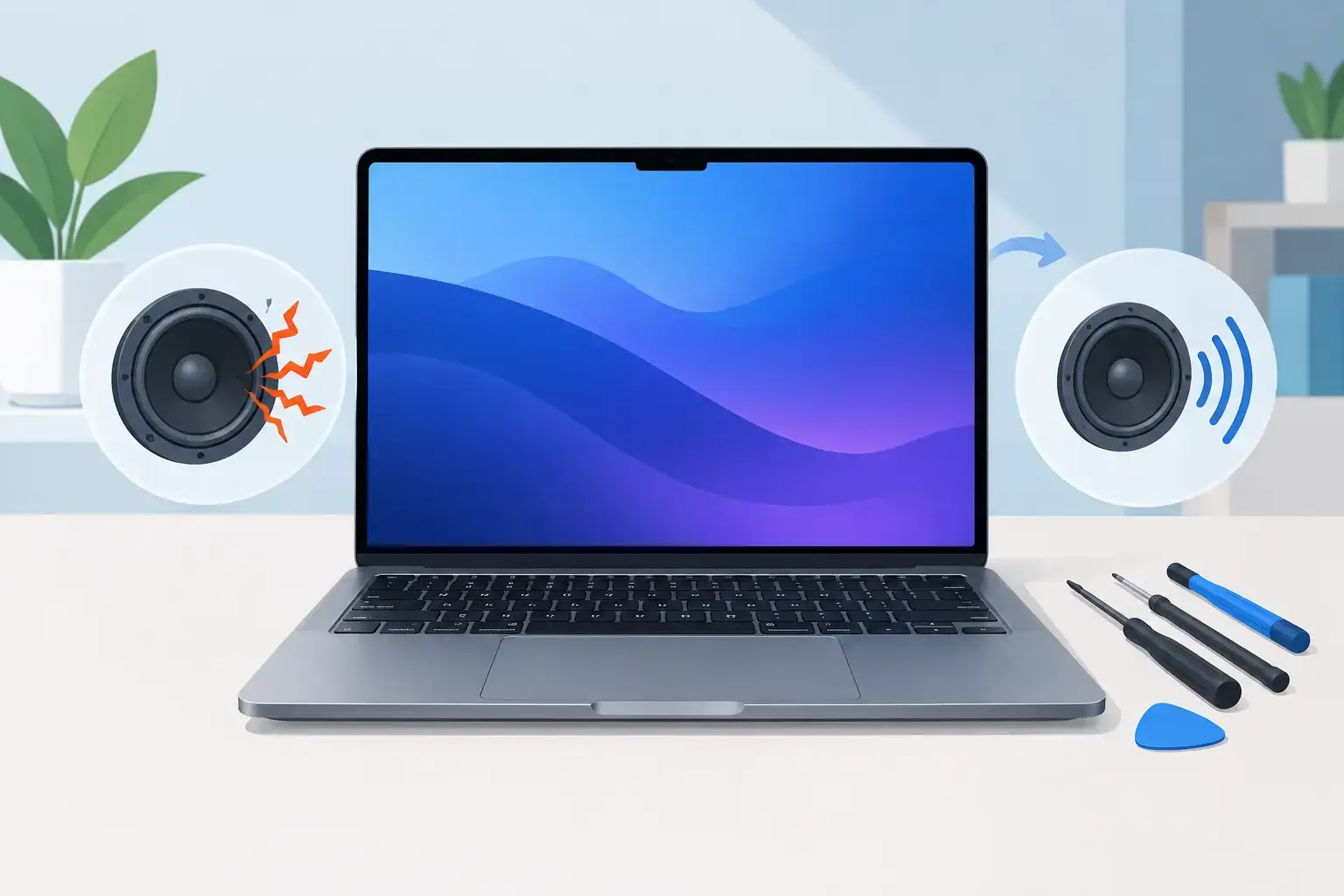
A MacBook that starts every meeting with a crackle, plays music at barely audible volume, or produces no sound at all can stop work faster than most people expect. If you need to repair MacBook speakers, the right fix depends on whether the fault is in the speaker hardware, macOS settings, liquid damage, or a deeper logic board issue. Replacing parts before identifying the cause can waste time and money.
What MacBook Speaker Problems Usually Mean
Speaker faults do not always mean the speakers themselves have failed. MacBook audio is controlled by several connected components: the speaker assemblies, audio flex cables, microphones, macOS audio services, firmware, and circuitry on the logic board. A failure at any point can create similar symptoms.


Crackling or distortion is often associated with a torn speaker cone, deteriorated internal material, or a speaker that has been pushed too hard over time. It can also appear after a liquid spill, even if the MacBook still powers on normally. Moisture may corrode a connector or damage the audio circuit gradually rather than causing an immediate shutdown.
Very low volume may be a settings problem, blocked speaker grilles, an audio balance setting shifted to one side, or physical damage to one speaker. No sound at all can be caused by macOS selecting the wrong output device, a failed audio service, a damaged cable, or a logic board fault. On some models, the headphone port or USB-C audio device can also interfere with the internal speaker output.
The model and year matter. Retina MacBook Pro, MacBook Air, and newer Apple silicon models use different internal layouts and parts. A correct repair starts by confirming the exact model, checking the symptom, and testing the audio path rather than assuming every no-sound complaint needs a speaker replacement.
Check These Settings Before You Repair MacBook Speakers
A few safe checks can rule out common software and configuration issues. Start by opening Sound settings in macOS and confirming that the output device is set to MacBook Speakers or Internal Speakers. If Bluetooth headphones, an external display, dock, or USB audio device is connected, disconnect it and test again. Macs can continue sending sound to a device you no longer realize is active.
Next, make sure the output volume is up and muted sound is disabled. Check the balance control as well. If it is pushed fully left or right, one side may sound silent even when both speakers are functional.
Restart the MacBook and test audio in more than one application. A browser tab, video-conferencing platform, or media app can have its own volume control. If system alerts play normally but a specific app has no sound, the issue is likely software-related rather than a speaker failure.
You can also test with wired or Bluetooth headphones. If headphones work but internal speakers do not, the fault may be limited to the speaker assemblies, their connection, or internal audio detection. If neither headphones nor internal speakers work, deeper software, audio codec, or motherboard diagnostics may be required.
Do not install random “audio repair” apps or delete system files in an attempt to force a fix. They rarely solve a hardware problem and can introduce new performance or security issues.
Signs the Speakers Need Physical Repair
Physical speaker repair or replacement becomes more likely when the audio problem is consistent across all apps and after a restart. A buzzing sound at certain bass levels, rattling from one side, or distortion that gets worse as volume rises usually points to damaged speaker components.
A MacBook that experienced a drop may have a loose connector, damaged speaker enclosure, or internal cable issue. If the keyboard, trackpad, or bottom case was previously repaired, a connector may not be seated correctly. This is why a technician should inspect the internal layout carefully instead of only replacing the visible symptom.
Liquid damage needs quick attention. Even a small coffee spill near the keyboard or a humid bag can affect the speaker area or logic board. If sound becomes muffled, intermittent, or distorted after exposure to liquid, turn the MacBook off, avoid charging it, and arrange an inspection. Continuing to use a wet or corroding device can turn a contained audio repair into an expensive board-level repair.
Burning smells, excessive heat, repeated restarts, or no audio alongside charging and startup problems are not normal speaker faults. These signs may indicate a logic board issue and should be diagnosed before any parts are ordered.
Why DIY Speaker Replacement Can Be Risky
Some MacBook speaker assemblies are technically replaceable, but the job is not always simple. Modern models are tightly packed, use delicate flex cables, and often require careful removal of the bottom case, battery connection, shields, and nearby components. A slipped tool can damage a cable, puncture a battery, or create a new fault.
Parts quality is another consideration. Low-cost aftermarket speakers may fit physically but deliver weak volume, poor bass response, rattling, or a short service life. A proper repair uses a compatible, tested part and confirms both left and right channels work correctly after installation.
Opening a MacBook yourself can also make it harder to identify the original cause. For example, replacing both speakers may temporarily improve the sound while a damaged audio circuit remains unresolved. If the replacement parts fail again, the real problem was never addressed.
For an older device with otherwise good performance, speaker replacement is often a sensible repair. For a MacBook with liquid damage, charging faults, and multiple board-level symptoms, the decision depends on diagnostic findings, repair cost, and the value of the device. A clear estimate should come after testing, not guesswork.
What a Professional MacBook Audio Diagnosis Should Include
A reliable speaker repair process begins with symptom testing. The technician should verify volume behavior, channel balance, distortion, internal output selection, headphone output, and sound behavior after restart. Where appropriate, macOS audio services and system configuration should be checked before hardware work begins.
If hardware inspection is needed, the MacBook should be opened with proper tools and anti-static handling. The speaker assemblies, connectors, cables, moisture indicators, corrosion, and surrounding board area need to be examined. A technician can then determine whether the repair requires speaker replacement, connector repair, cleaning after liquid exposure, software correction, or board-level work.
After repair, testing should cover more than a short startup chime. Both speakers should be tested at low, medium, and higher volume levels, with voice audio and music playback. The MacBook should also be checked for unwanted vibration, loose components, microphone concerns, and proper reassembly.
Data is usually unaffected by a straightforward speaker replacement, but careful handling still matters. If the device has liquid damage or is behaving unpredictably, back up important files as soon as it is safe to do so. For professionals and students who cannot pause work, ask about turnaround options and a temporary laptop when a deeper repair will take longer.
Preventing the Next Speaker Failure
Keep liquids away from the keyboard and speaker areas, and avoid using maximum volume for long periods, especially when the audio already sounds distorted. Do not force compressed air into the speaker grilles, as it can move debris deeper or stress sensitive components. A soft brush and careful exterior cleaning are safer.
Pay attention to changes early. A faint rattle after a spill or a single silent channel is easier to investigate than a MacBook that has been used for weeks with corrosion spreading inside. If sound problems appear with overheating, unexpected shutdowns, or charging issues, treat them as a broader hardware concern.
For MacBook owners in Dubai who need a clear diagnosis instead of a guess, Trust IT Skills can assess the audio system, explain the repair path, and help get the device back to clean, reliable working condition. The best next step is simple: stop turning the volume up to hide the issue and have the source of the fault properly tested.