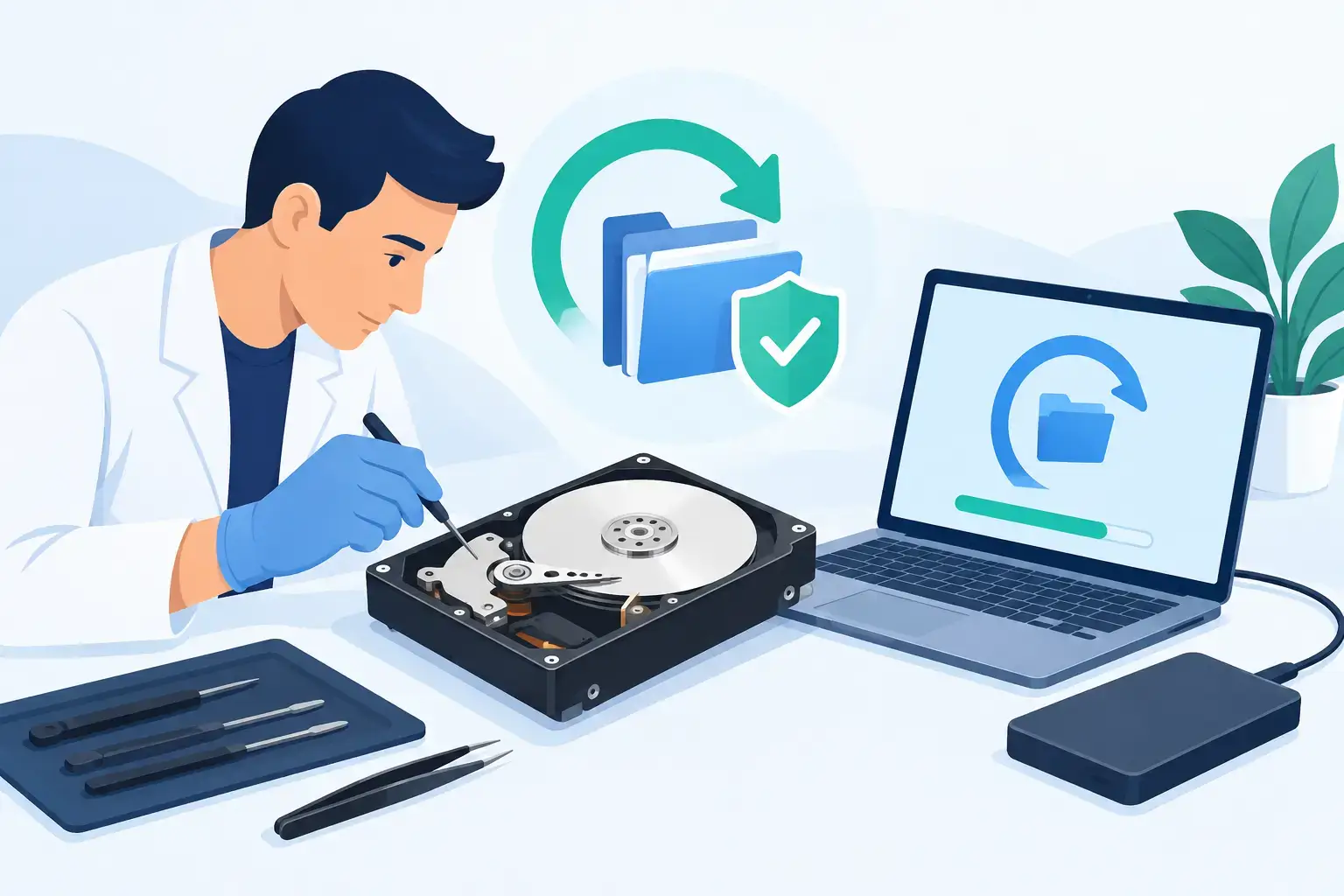
A missing work folder, years of family photos, or a business database that will not open can turn a normal day into an urgent problem. This professional hard drive recovery guide explains what to do in the first few minutes after data loss, which actions can make recovery harder, and when a drive needs clean, specialist-level handling rather than another software attempt.
The priority is not getting the computer running again. It is preserving the data that is still recoverable. A hard drive can fail gradually, suddenly, or after physical damage, and the correct next step depends on the type of failure.


First, Stop Using the Drive
If files disappeared, the drive asks to be formatted, the computer cannot boot, or you hear clicking sounds, stop writing data to that drive immediately. Every startup, download, software installation, or saved file can overwrite sectors that may still contain recoverable information.
This applies to internal laptop drives, external USB drives, desktop hard drives, and storage used in small office systems. Do not install recovery software onto the affected drive. If the computer still works and the missing data is on a secondary drive, shut it down and disconnect that drive safely.
For a business, notify the person responsible for IT before staff attempt fixes on their own. One employee repeatedly restarting a failing shared drive can turn a manageable incident into extended downtime.
Identify the Type of Data Loss
A professional diagnosis starts by separating logical data loss from physical failure. They can look similar from the outside, but the recovery method, risk, turnaround time, and expected result are very different.
Logical data loss
Logical issues occur when the hardware is still functioning but the file system, partition, operating system, or files are damaged or deleted. Common causes include accidental deletion, an emptied recycle bin, formatting the wrong partition, malware, interrupted file transfers, failed updates, and file-system corruption.
A drive may appear normally in Windows or macOS but show an empty folder, ask to be initialized, or display a message that the disk must be formatted. In some cases, carefully performed recovery software can help. However, it should be used only when the drive is stable, recognized correctly, and not making unusual noises.
Physical hard drive failure
Physical failure means there is an issue with the drive itself. Warning signs include clicking, beeping, grinding, slow detection, repeated disconnections, overheating, a drive that spins but is not recognized, or a drive that was dropped or exposed to liquid.
Traditional hard drives use spinning platters and read/write heads. A damaged head can scratch the platter surface while the drive remains powered on. Continuing to run it may reduce the amount of data a technician can recover. This is not a situation for repeated restarts, freezer tricks, or random repair videos.
SSD and flash storage failure
SSDs do not have moving parts, but they can still fail due to controller faults, firmware corruption, electrical damage, worn memory cells, or motherboard problems. Recovery from an SSD is often more time-sensitive because TRIM may permanently clear deleted blocks during normal use.
An SSD that does not appear in BIOS, Disk Management, or macOS Disk Utility should be assessed before any repair attempt. The issue may be the SSD, its enclosure, the laptop connector, or the motherboard power circuit. Accurate diagnostics prevent replacing the wrong part and overlooking recoverable data.
What Not to Do When a Drive Fails
Urgency often pushes people toward quick fixes. Some are safe in limited cases, but several common actions create unnecessary risk. Avoid these steps until the drive condition is known:
- Do not format, initialize, erase, or repartition the affected disk.
- Do not run CHKDSK, First Aid, repair utilities, or defragmentation on a clicking or unstable drive.
- Do not open a hard drive casing outside a controlled clean environment.
- Do not keep reconnecting a drive that disconnects, overheats, or makes mechanical noise.
- Do not save recovered files back to the same drive.
A drive that is simply not detected may also have a cable, USB enclosure, power adapter, or port issue. Testing a known-good cable or enclosure can be reasonable when there are no signs of mechanical failure. But if the drive begins clicking, spins down repeatedly, or becomes unusually hot, disconnect it and move to professional assessment.
A Professional Hard Drive Recovery Guide to the Diagnosis Process
Professional recovery is not a single button or one piece of software. It is a controlled process designed to preserve the best possible copy of the remaining data.
The first stage is intake and diagnosis. A technician checks the drive’s behavior, connection method, power condition, detection status, and error pattern. For a laptop that will not boot, the technician also checks whether the issue comes from the storage drive, operating system, battery, motherboard, or BIOS configuration.
If the drive is stable enough, the next step is often to create a sector-by-sector clone or image onto healthy storage. Recovery work is then performed on that copy rather than the original drive. This reduces stress on the failing hardware and protects the source data from accidental changes.
For logical cases, technicians can rebuild partition information, scan for file signatures, repair file-system structures, and recover selected folders. File names and folder structures may be preserved when metadata remains intact. If the file system is heavily damaged, recovered files may need to be sorted by type, date, or content.
Physical recovery may require specialized equipment and, depending on the fault, controlled component work. The goal is not to make an old drive reliable for future use. It is to stabilize access long enough to extract the data safely. Once recovery is complete, the original failing drive should be retired.
Recovering Business Files Without Creating More Downtime
For Dubai startups, clinics, retail teams, and small offices, data loss is rarely limited to one computer. The affected device may contain accounting files, client documents, email archives, design projects, shared spreadsheets, or locally stored application data.
Before recovery begins, identify what matters most. A prioritized file list helps the technician focus on critical documents first if the drive is severely damaged. Include application-specific files, local desktop folders, browser downloads, Outlook data files, accounting databases, and any folders that may not be included in cloud synchronization.
Also check whether usable copies exist elsewhere. Microsoft 365, cloud backup platforms, shared drives, email attachments, previous versions, and another employee’s device may contain current or near-current data. This does not replace drive recovery, but it can restore operations faster and reduce the pressure on a damaged disk.
A good recovery provider should explain whether the case appears logical or physical, what recovery approach is appropriate, the likely time frame, and what data can realistically be expected. No honest technician should promise 100 percent recovery before examining the device. Severe platter damage, overwritten data, encryption without the key, and failed SSD controllers can limit results.
Encryption Changes the Recovery Conversation
Modern Windows and Mac systems often use BitLocker or FileVault encryption. Encryption protects data if a device is lost, but it can also prevent access when the recovery key or account credentials are unavailable.
Keep recovery keys stored securely outside the laptop. For business devices, document who holds administrative access and where keys are managed. A technician may be able to recover the encrypted drive structure, but the files still require the correct recovery key or credentials to be read.
This is especially relevant after motherboard failures. If the storage device itself is healthy but the laptop will not power on, data may be accessible through another system only if encryption requirements can be met.
After Recovery, Build a Safer Storage Plan
Recovered data should be copied to new, verified storage, not returned to a failing drive. For most users, a new SSD can improve speed and reliability, while the old drive can be retained only as evidence of the failure if needed.
For businesses, recovery should trigger a practical backup review. The most effective setup usually includes a local backup for fast restores, cloud backup for offsite protection, and periodic checks that files can actually be restored. Backups that have never been tested are assumptions, not protection.
Trust IT Skills can assess failed laptop and desktop storage, recover accessible data where possible, replace damaged drives, and help Dubai businesses put backup and continuity measures in place. When work or study depends on the device, a temporary laptop can also reduce disruption while the original system is being handled.
The best time to protect data is before a drive makes its first clicking sound. If it is already failing, power it down, keep it safe, and let the next action be a careful diagnosis rather than another risky restart.