



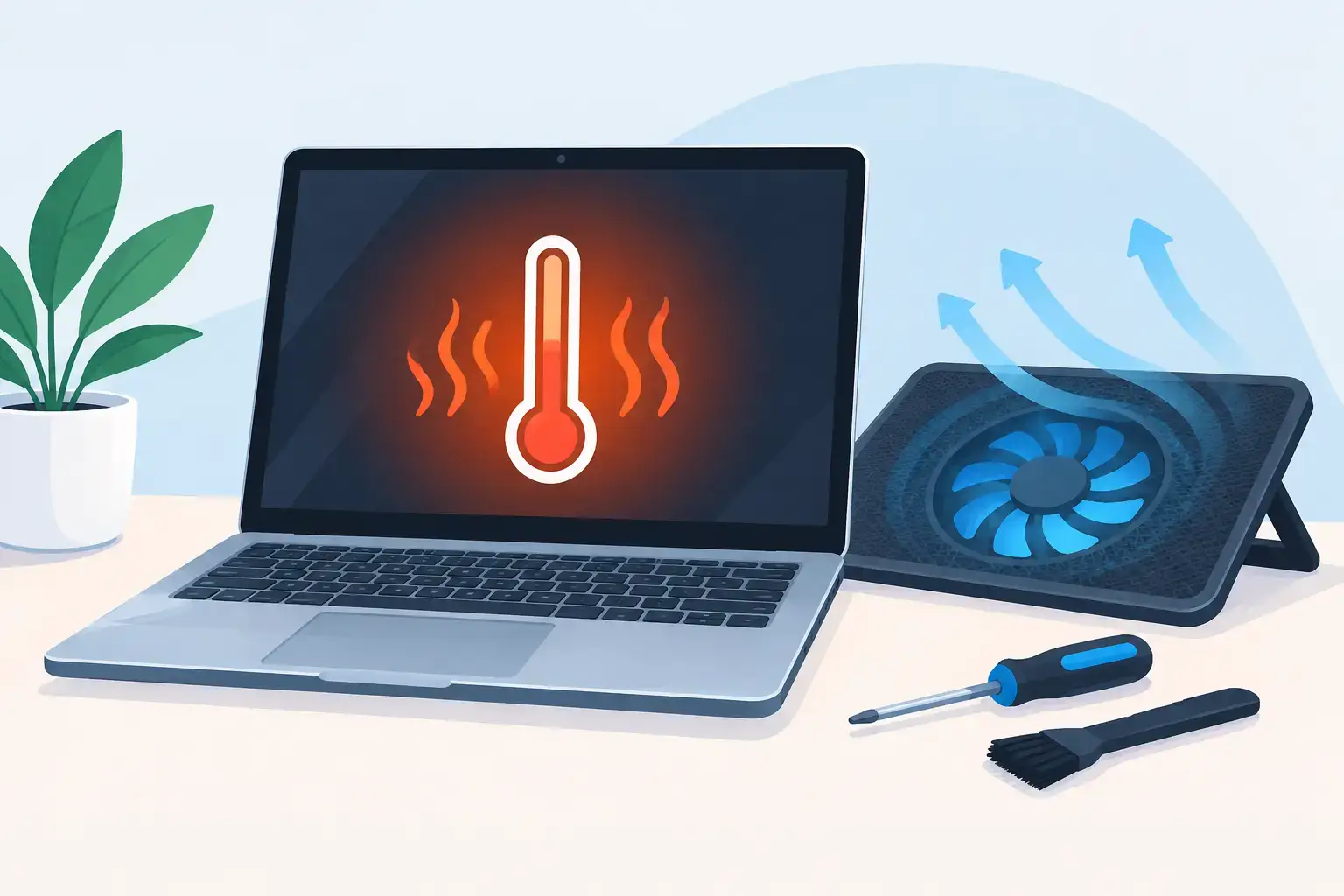
A laptop that becomes hot enough to make typing uncomfortable is not just annoying. It can slow down during a meeting, shut off while you are studying, drain its battery faster, or put valuable files at risk. Understanding why laptops overheat helps you act before a minor cooling issue turns into a failed fan, damaged battery, or motherboard repair.
Modern laptops are compact, and high-performance models generate substantial heat in a very small space. A little warmth is normal when charging, streaming, gaming, editing video, or running several applications. Persistent heat, loud fan noise, reduced speed, unexpected shutdowns, or a burning smell are not normal. They need attention.


Why Laptops Overheat: The Main Causes
A laptop manages heat by moving it away from the processor and graphics chip through heat pipes and thermal paste, then pushing it out through vents with a cooling fan. If any part of that system is blocked, worn, or overloaded, internal temperatures rise quickly.
Dust blocks airflow
Dust is one of the most common causes of overheating, especially in laptops used daily in bedrooms, offices, classrooms, or shared workspaces. It collects inside the fan blades, heatsink fins, and air vents. The fan may still spin, but it cannot move enough air through the system.
This problem often develops gradually. You may first notice that the fan runs more often. Later, the laptop becomes hot even during simple tasks such as browsing, working in Microsoft Office, or joining a video call. In Dubai, fine dust and frequent use in air-conditioned spaces can make regular internal cleaning particularly worthwhile.
The laptop is sitting on a soft or uneven surface
Many laptops draw cool air through vents on the bottom panel. Using one on a bed, sofa, blanket, pillow, or even your lap can seal those vents and trap heat underneath. The system then recirculates hot air instead of pulling in cooler air.
Place the device on a firm, flat surface whenever possible. A hard desk is usually enough for normal work. A quality cooling stand can help with long gaming sessions, rendering, or other demanding workloads, but it will not fix a blocked heatsink or failing internal fan.
Heavy workloads push the CPU and GPU too hard
A laptop can run hot because it is working exactly as hard as the task requires. Games, CAD software, virtual machines, 4K video editing, large spreadsheets, software development tools, and AI workloads can keep the CPU or GPU near maximum usage for long periods.
The question is whether the heat matches the workload. A gaming laptop will naturally run warmer while playing a demanding title than while checking email. But if performance suddenly drops, frame rates fall, or the system shuts down under a workload it previously handled well, the cooling system may no longer be keeping up.
Background software and malware consume resources
Sometimes the problem is not the hardware first. A runaway application, too many browser tabs, automatic updates, cloud syncing, or malware can keep the processor busy even when you are not actively using the laptop. That constant load produces constant heat.
Check Task Manager on Windows or Activity Monitor on a MacBook for unusually high CPU, GPU, or memory use. If one program is consuming resources without a clear reason, close it and restart the computer. If the behavior returns, a professional software check and malware scan may be needed.
A worn fan, damaged heatsink, or failing sensor
Fans are mechanical parts. They can wear out, become noisy, spin slowly, or stop altogether. You may hear grinding, rattling, clicking, or no fan noise at all when the laptop is clearly hot. Physical damage, liquid exposure, and previous poor-quality repairs can also affect fan connections, heat pipes, or temperature sensors.
A failed fan should not be ignored. Continuing to use the laptop can trigger thermal throttling, where the processor intentionally slows down to protect itself. In severe cases, the device may shut down without warning.
Old thermal paste stops transferring heat efficiently
Thermal paste is the material between the processor or graphics chip and its heatsink. It helps transfer heat into the cooling assembly. Over time, it can dry out or lose effectiveness, particularly in older laptops and heavily used gaming machines.
Replacing thermal paste requires proper disassembly, cleaning, correct paste application, and careful reassembly. Too much paste, the wrong material, or an improperly seated heatsink can make temperatures worse. This is a repair best handled during a full thermal inspection rather than as a quick DIY experiment.
Battery, charging, and motherboard faults create extra heat
Heat is not always coming from the processor. A swollen or failing battery can become unusually warm while charging. A damaged charging circuit, shorted component, liquid-damage corrosion, or motherboard fault can also create localized heat.
If the palm rest, charging port, battery area, or underside becomes extremely hot, stop charging and power the laptop off. Do not press on a swollen battery or continue using a device that smells chemical, smoky, or burnt. These symptoms require prompt diagnosis.
Warning Signs You Should Not Ignore
Heat becomes a repair issue when it affects stability, safety, or performance. Watch for a fan that runs at full speed during light use, a laptop that freezes or restarts, frequent blue-screen errors, a case that is too hot to touch, or a device that slows down sharply after a few minutes of work.
MacBook users may also see performance lag, unexpected application closures, or a temperature warning. Windows laptop owners may notice reduced clock speeds, black screens under load, or games suddenly dropping in frame rate. These symptoms do not automatically mean the motherboard has failed, but they do justify a proper diagnostic check.
What You Can Safely Do First
Start with the simple checks that do not involve opening the laptop. Shut it down, disconnect the charger, and let it cool on a hard surface. Inspect the visible vents for lint buildup. You can use gentle bursts of compressed air from a safe distance, but avoid forcing debris farther inside or spinning the fan excessively.
Then restart the system and reduce unnecessary load. Close unused programs and browser tabs, install pending operating system updates, and check for unusual background processes. If you use a gaming laptop, choose a balanced power setting for everyday work instead of leaving it in a high-performance mode all day.
Keep the charging area clear and use a compatible, good-condition charger. An incorrect or damaged adapter can contribute to charging problems and heat. Also back up important files if the laptop has begun shutting down unexpectedly. Heat-related faults can worsen without much warning.
When Professional Overheating Repair Is the Better Option
Do not open a modern laptop just because its fan is loud. Many models have delicate clips, compact cable routing, and batteries that must be disconnected correctly before internal work begins. MacBooks, ultrabooks, Microsoft Surface devices, and thin gaming laptops can be especially difficult to service without the right tools.
Professional diagnostics can identify whether the cause is dust buildup, a faulty fan, dried thermal paste, battery trouble, BIOS configuration, software load, or a deeper motherboard issue. The repair should include temperature testing before and after service, not simply a quick external clean.
For a laptop used for work, study, or business operations, speed matters as much as the repair itself. Trust IT Skills can assess overheating across major laptop brands, perform internal thermal cleaning and fan repair, address software causes, and check related battery or motherboard concerns. If a device needs more time in service, planning for a backup system helps reduce disruption.
Preventing the Problem From Returning
Good laptop habits make a real difference. Use a hard surface, keep vents clear, and avoid leaving the device in a hot car or direct sun. Schedule internal cleaning based on your environment and workload, especially if you have pets, work near dust, or use a gaming laptop regularly.
Do not treat recurring heat as something you have to live with. A clean, correctly cooled laptop stays faster, quieter, and more reliable when you need it most.



