


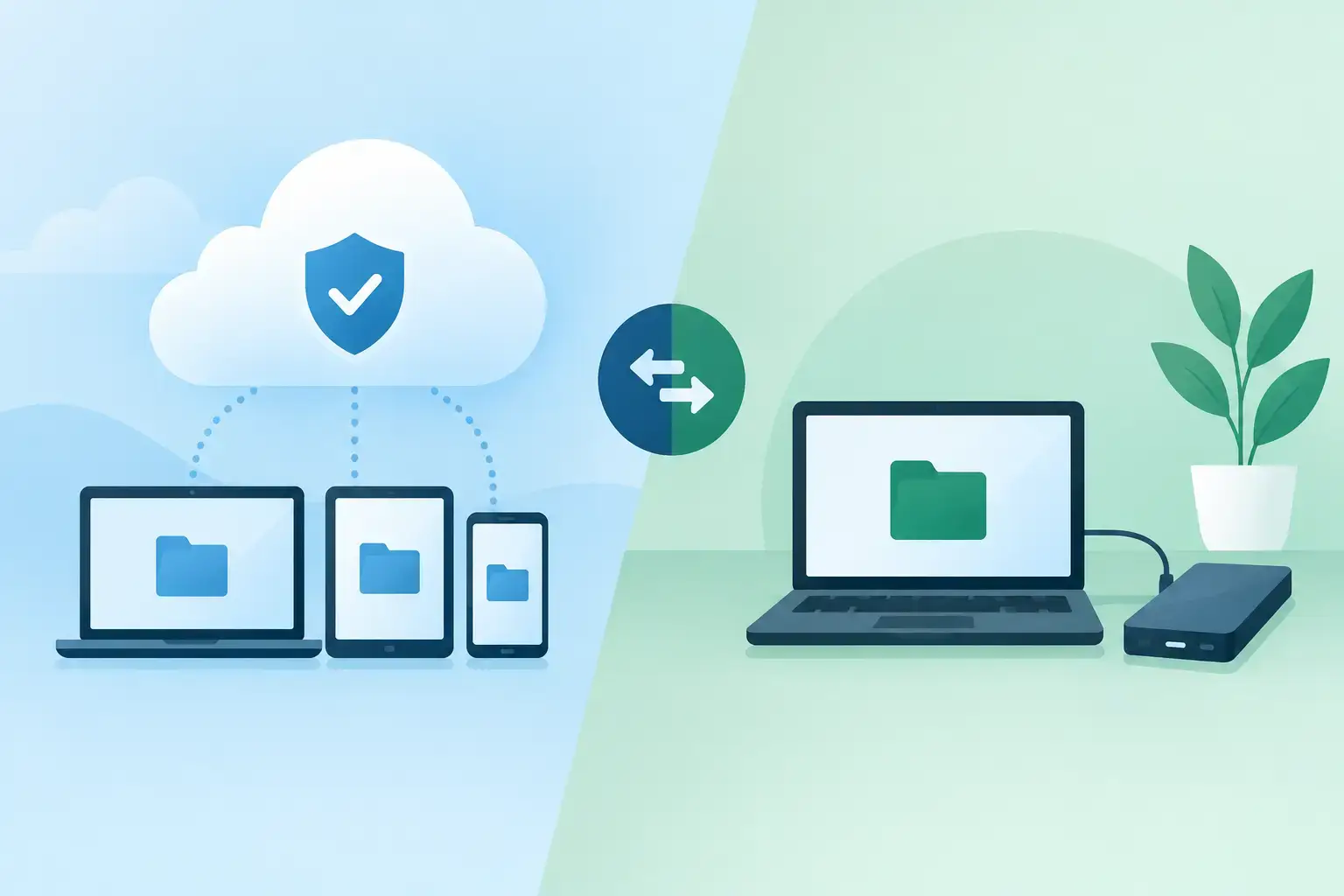
A laptop can look completely normal at 9:00 a.m. and fail to start before lunch. A spilled drink, a damaged SSD, ransomware, or an accidental folder deletion can turn routine work into an urgent recovery job. The cloud backup versus local backup decision determines whether that moment is a minor interruption or a serious data-loss incident.
For a student, the missing files may be a final project. For a business, they may be customer records, financial documents, emails, design files, or years of operational data. Backups are not only about storage capacity. They are about how quickly you can restore the right files, from the right version, when a device or office system fails.


Cloud Backup Versus Local Backup: The Core Difference
Local backup stores a copy of your data on a physical device you control, such as an external hard drive, SSD, NAS device, or office server. The backup is close by, which usually makes large restores fast. If a laptop drive fails, a technician can often recover your files from the local backup without waiting for an internet download.
Cloud backup sends encrypted copies of selected files, folders, or full systems to remote data centers through an internet connection. Because the copy is stored away from your home or office, it can remain available after theft, fire, flood, or a major hardware failure at the original location.
Neither option is automatically better in every situation. A local backup gives speed and direct control. Cloud backup gives geographic separation and access from another device or location. The strongest setup usually combines both.
When Local Backup Is the Better Choice
Local backup is practical when you work with large files and need quick recovery. Video editors, architects, photographers, gamers, and offices with large project folders can spend days uploading and downloading terabytes of data. An external SSD or properly configured NAS can copy and restore those files much faster than most internet connections allow.
It is also useful during an urgent laptop repair. If a MacBook or Windows laptop has a failing drive but still starts, creating a local copy first may protect the data before deeper diagnostics, operating-system repair, or SSD replacement begins. A direct backup is often the fastest way to secure the customer’s files before the device condition gets worse.
Local storage has limits, however. An external drive sitting beside the laptop can be lost, stolen, damaged by power issues, or affected by the same liquid spill. A NAS connected to the office network can also be exposed if ransomware reaches shared folders. Local backup is not enough if it is your only copy and it stays in the same place as the original data.
Where Cloud Backup Protects You Better
Cloud backup is especially valuable when the whole location is the problem. A stolen laptop, an office break-in, a failed server, or damaged equipment should not take your only backup with it. With a correctly configured cloud backup, you can sign in from a replacement computer and begin restoring critical work.
For remote teams, cloud backup also reduces dependence on one office device. Staff can work from home, travel between sites, or use a temporary replacement laptop without moving a physical drive around. That matters for small businesses that cannot afford extended downtime while a workstation, network device, or server is repaired.
Version history is another major benefit. Good cloud backup systems keep earlier versions of files for a defined period. If a spreadsheet is overwritten on Monday or ransomware encrypts documents on Tuesday, you may be able to restore a clean version from before the incident. This is different from basic file syncing. A sync service can copy a deletion or corrupted file across every connected device. Backup needs retention rules that preserve recoverable versions.
Cloud backup does depend on internet speed, storage limits, account security, and service configuration. Uploading the first full backup can take time, particularly for offices with large data sets. Restoring a full system may also be slower than copying from a nearby drive. If the backup account has weak passwords or no multi-factor authentication, the account itself becomes a security risk.
The Risks People Miss in Both Backup Methods
The most common backup failure is not a broken drive or cloud outage. It is assuming a backup exists without checking it. A drive may have stopped running scheduled backups months ago. A cloud account may be full. Important folders may have been excluded, or the backup may only cover documents while essential desktop files, emails, databases, and application settings are missing.
Businesses should also separate backup access from everyday user accounts where possible. If an employee’s computer is infected and the same credentials have full control over the backup platform, an attacker may try to delete or encrypt the backup copies as well. Protected retention, restricted administration, and multi-factor authentication make a real difference.
Do not confuse RAID with backup either. RAID can keep a server or NAS running after one drive fails, depending on its configuration. But it does not protect you from accidental deletion, ransomware, theft, or a faulty file being saved over the correct version. It improves availability, not recoverability.
A Practical Backup Plan for Laptops and Small Businesses
The familiar 3-2-1 approach remains useful because it addresses different failure points. Keep three copies of important data: the working copy plus two backups. Store those copies on at least two different types of storage, and keep one copy offsite.
For an individual laptop user, that may mean the files on the computer, an encrypted external SSD used for regular backups, and a cloud backup service with version history. The external drive gives fast recovery after an SSD upgrade or operating-system problem. The cloud copy protects you if the laptop and drive disappear together.
For an office, the plan should be more deliberate. Workstation files, shared folders, email data, business applications, and server or NAS data may all need separate protection. Set a backup schedule based on how much work you can afford to lose. A design office making constant project changes may need frequent backups. A small retail business may need daily protection for reports, accounting data, and point-of-sale exports.
A reliable routine includes these checks:
- Confirm that backups complete successfully and storage space is available.
- Review which folders, devices, mailboxes, and systems are actually included.
- Test a file restore regularly, including an older version of an important document.
- Protect backup accounts and devices with strong access controls and multi-factor authentication.
Testing matters because a backup is only useful when the file opens, the right version is available, and the restore process is understood before an emergency.
How to Choose Between Cloud, Local, or Both
Choose local backup as a priority when your main concern is fast restoration of very large files, you have limited internet bandwidth, or you need to protect data before a repair or drive replacement. Use encrypted storage and keep the drive disconnected when it is not actively backing up, especially if ransomware is a concern.
Choose cloud backup as a priority when you need protection from theft, site damage, remote-work disruption, or the loss of a single device. It is particularly useful for laptops that travel frequently and businesses that need staff to access restored data from another location.
Choose both when the data is valuable enough that downtime is expensive. For most professionals and small businesses, this is the sensible answer. Local backup handles speed. Cloud backup handles disaster recovery. Together, they reduce the chances that one device failure becomes a complete stop to work.
If a computer is already showing warning signs – repeated crashes, clicking drives, startup errors, liquid damage, overheating, or missing files – do not wait for a convenient time to back up. Avoid repeated restarts, stop saving new data to the affected drive, and secure the files that still matter. A fast assessment can identify whether a normal backup is safe or whether professional data recovery is the better next step.
Your backup plan should fit the way you work, not sit untouched until something goes wrong. Set it up, verify it, and make sure you can restore the files that keep your study, job, or business moving.