

A laptop that works fine for casual browsing can fail quickly when it becomes your office, meeting room, file server, and communication tool. If video calls freeze, apps take too long to open, the fan runs constantly, or battery life disappears before lunch, it is time to optimize laptop for remote work instead of working around the problem.
Remote work puts sustained pressure on hardware, WiFi, storage, and security. The right fix may be as simple as clearing startup apps and updating your system. In other cases, an aging battery, nearly full SSD, thermal issue, or unstable network needs proper diagnosis before it affects a client meeting or a work deadline.

Optimize Your Laptop for Remote Work From the Start
Begin with a practical assessment of what happens during a normal workday. Open the applications you use at the same time: your browser, email, Microsoft Office or Google Workspace, video meeting software, cloud storage, and any industry-specific tools. If the laptop slows down only when several programs are active, the issue may be limited memory, a weak processor, or unnecessary background tasks.
Check available storage as well. A laptop with a nearly full drive has less room for temporary files, updates, and virtual memory. Keep at least 15% to 20% of the internal drive free where possible. Move old downloads, duplicate media, and completed project files to secure cloud storage or an external drive, but do not delete business documents until you confirm they are backed up.
Also install pending operating system, browser, and application updates. Updates can fix security gaps and compatibility issues, but timing matters. Do not run a major update ten minutes before an important presentation. Schedule it after work, restart the laptop, and test your key apps the next morning.
Improve Speed Without Installing Random Cleanup Tools
Slow performance is often caused by too many programs launching automatically. Review your startup settings and disable applications that do not need to open every time you turn on the laptop. Messaging tools, cloud sync, and security software may be necessary. Old game launchers, unused updaters, and trial utilities usually are not.
Your browser also deserves attention because remote work often happens across dozens of tabs. Close tabs you no longer need, remove extensions you do not recognize, and avoid keeping multiple browser windows open just because they might be useful later. A password manager and organized bookmarks are safer and faster than leaving sensitive portals open all day.
If performance remains poor after basic cleanup, check the hardware rather than repeatedly reinstalling software. An SSD upgrade can make a major difference on laptops still using older hard drives. Adding RAM can help when video calls, large spreadsheets, and browser tabs regularly compete for memory. The best upgrade depends on your device model, age, and the work you actually perform.
Keep Cooling Under Control
A hot laptop does not only feel uncomfortable. Excess heat can cause the processor to reduce speed to protect itself, making the system feel slow during calls or demanding tasks. Use the laptop on a hard, flat surface so air vents remain clear. Beds, sofas, and laps can block airflow and trap heat.
If the fan is loud even during light work, the vents may be clogged with dust or the cooling system may need service. Persistent overheating, sudden shutdowns, and burning smells are not software problems to ignore. A thermal audit can identify fan faults, dried thermal paste, blocked vents, or deeper motherboard issues before they cause more expensive damage.
Make Video Calls Clear and Reliable
Remote workers are often judged by how reliably they show up on calls. Test your camera, microphone, speakers, and meeting app before a client session, interview, or team presentation. Use a headset when possible. It reduces echo, improves voice clarity, and keeps private conversations from filling the room.
Close heavy applications before joining a video call, especially cloud backups, large downloads, games, and browser tabs playing media. If your camera image is poor, clean the lens and sit facing a window or lamp rather than placing a bright light behind you. Better lighting usually improves call quality more than a costly webcam.
Keep a backup option ready for important meetings. This can be a mobile hotspot, a charged phone with the meeting app installed, or a second device for joining audio. It is not about expecting failure. It is about preventing one local issue from stopping work completely.
Fix WiFi Problems Before Blaming the Laptop
A fast internet plan does not guarantee a stable remote workspace. WiFi performance depends on distance from the router, wall thickness, network congestion, router placement, and the number of connected devices. If calls drop only in one room, test the laptop closer to the router before changing laptop settings.
For a fixed desk, an Ethernet connection is often the most dependable option. If a cable is not practical, consider a quality WiFi extender or mesh system placed based on an actual signal test, not guesswork. Restarting the router can help temporarily, but recurring slowdowns may point to poor coverage, outdated router hardware, incorrect configuration, or competing devices on the network.
For business users, separate guest access from office devices and use strong WiFi passwords. A poorly secured network can expose shared files, printers, cloud accounts, and customer information. Network setup should support productivity and security at the same time.
Protect Battery Life and Your Ability to Work Anywhere
Battery wear is normal, but rapid battery drain can interrupt a day away from your desk. Lower screen brightness to a comfortable level, switch off Bluetooth when you are not using it, and close power-hungry apps running in the background. Power settings can reduce unnecessary activity without making the laptop difficult to use.
Watch for warning signs that go beyond normal aging. A battery that swells, overheats, drains from full to empty unusually fast, or causes the laptop to shut down without warning should be inspected promptly. A swollen battery can damage the trackpad, keyboard, and chassis. Do not keep charging it in the hope that it will improve.
Use the correct charger and avoid low-quality replacements. The wrong wattage or unreliable charging cable can cause slow charging, connection problems, and potential power-related damage. For people who move between home, office, and client sites, keeping a tested spare charger in the work bag is a simple continuity plan.
Secure the Laptop That Holds Your Work
Remote work expands the risk of data loss because files move between cloud platforms, email, USB drives, and home networks. Turn on automatic backups for work documents and verify that the backup is completing successfully. A backup that has not run for weeks is not a recovery plan.
Use a strong device password, enable multi-factor authentication for business accounts, and lock the screen whenever you step away. Keep antivirus protection active, but remember that security also depends on behavior. Be cautious with unexpected attachments, fake delivery notices, and urgent password-reset emails. Malware often reaches a laptop through a convincing message, not a technical attack that looks obvious.
If the laptop contains client records, financial documents, or company files, encryption and properly configured user accounts add another layer of protection. Small businesses do not need a large internal IT department to apply these basics, but they do need clear ownership of who manages them.
Know When Optimization Needs a Repair Technician
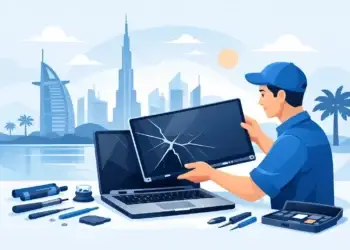
Not every remote-work issue can be solved through settings. Repeated blue screens, liquid exposure, a cracked screen, charging failures, no display, startup errors, and sudden data loss require a diagnostic-led repair approach. Continuing to use a damaged laptop can turn a manageable fault into a motherboard repair or permanent data-recovery case.
Trust IT Skills can assess performance faults, overheating, battery health, storage upgrades, software errors, WiFi setup, and deeper hardware problems across major laptop brands. For remote workers and Dubai businesses facing extended repairs, a temporary laptop option can reduce downtime while the original device is being repaired.
A reliable remote-work laptop is not the newest device with the most features. It is the one that starts quickly, stays cool, connects consistently, protects your files, and lets you focus on the work in front of you. Address small warning signs early, and your laptop is far more likely to be ready when the next important call begins.