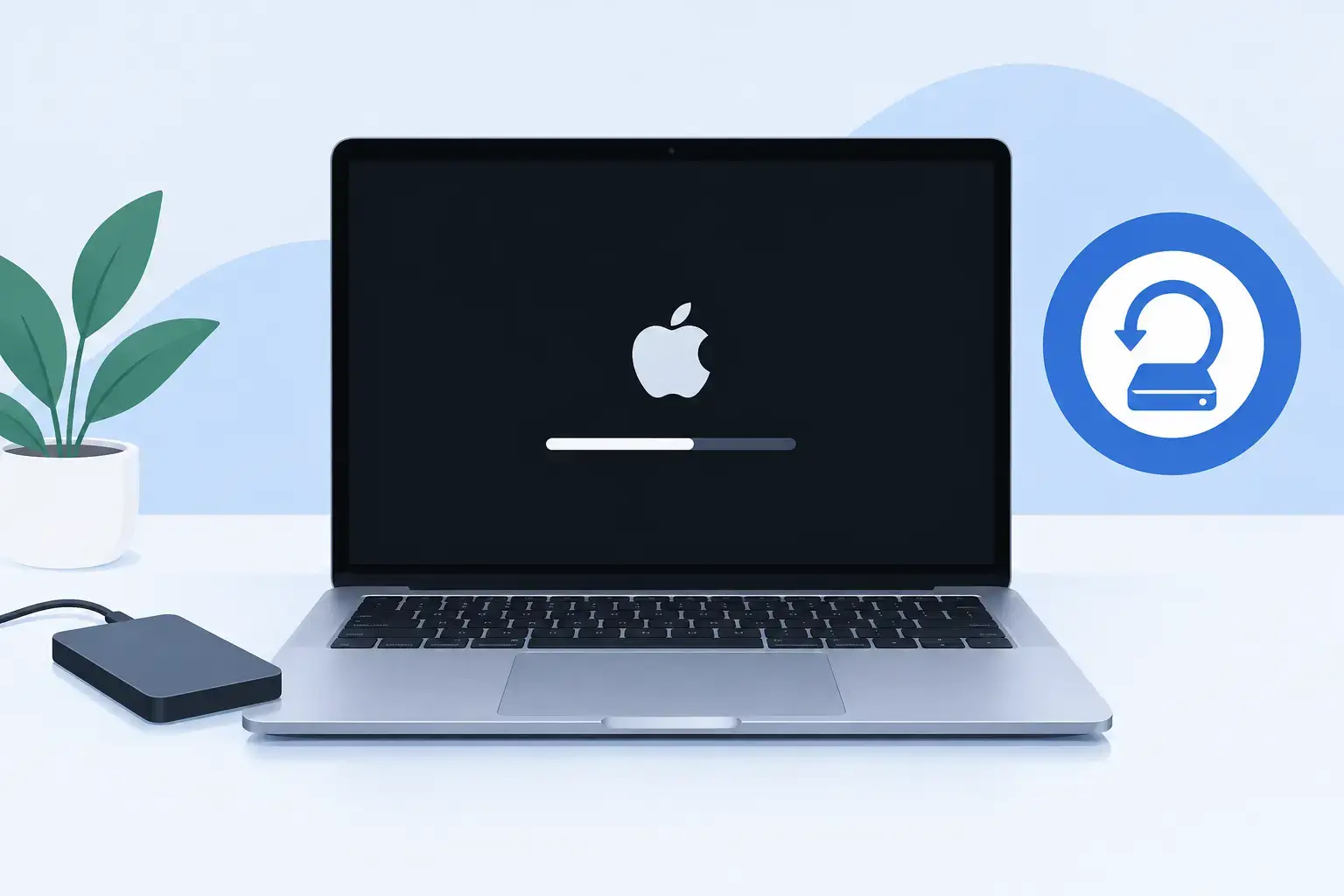
A MacBook that stops at the Apple logo, shows a folder with a question mark, restarts repeatedly, or opens only to a black screen can bring work to a halt without warning. This MacBook startup recovery guide helps you separate a recoverable macOS problem from a storage, battery, display, or motherboard fault before you risk your files or waste time on the wrong fix.
Startup recovery is not one button or one repair. The correct path depends on whether your Mac has Apple silicon or an Intel processor, what appears on screen, and whether the internal drive is still detected. Start carefully. A rushed erase or repeated forced shutdown can turn a manageable software issue into a data-recovery job.


Start With the Basics Before Recovery
Connect the MacBook directly to a known-working charger and wall outlet. Let it charge for at least 20 minutes if the battery may be fully drained, then disconnect all accessories except power. USB hubs, external drives, displays, adapters, and even a faulty mouse can interfere with startup.
If the screen appears black, first rule out a display issue. Increase brightness, listen for the startup sound or fan activity, and check whether the keyboard backlight turns on. A MacBook may be running normally while its screen, display cable, backlight circuit, or external monitor setting is the actual problem.
Before using macOS Recovery, take note of the exact symptom. A flashing question-mark folder usually means the Mac cannot find a usable startup disk. A circle with a slash can indicate an incompatible macOS version. A progress bar that stops at the same point may point to disk errors, corrupted system files, or failing storage.
Know Which MacBook You Have
Recovery startup steps differ by processor type. Apple silicon models include Macs with M1, M2, M3, M4, and later Apple chips. Most older MacBooks use Intel processors.
For an Apple silicon MacBook, shut it down fully. Press and hold the power button until you see “Loading startup options,” then select Options and choose Continue. Do not release the power button as soon as the Apple logo appears.
For an Intel MacBook, turn it on and immediately hold Command-R. This opens the built-in recovery system. If it does not load, try Option-Command-R for Internet Recovery, which attempts to install the newest compatible macOS version. Shift-Option-Command-R is useful when you need the version that originally shipped with the Mac, or the closest version still available.
Internet Recovery needs a stable WiFi connection. If Recovery displays a globe but does not progress, move closer to the router, try another network, or use a compatible wired network adapter. Office guest networks and login-based WiFi can prevent recovery from completing.
Protect Your Data Before You Make Changes
If Recovery opens and the internal drive is visible, resist the urge to erase it immediately. Reinstalling macOS over the existing system normally keeps personal files in place, while erasing removes the drive contents. These are very different actions.
Use Disk Utility first. In the menu bar, select View, then Show All Devices. This reveals the physical drive, its container, and individual volumes. Run First Aid from the lowest visible volume upward, then check the container and physical disk. If First Aid reports that it repaired errors, restart the MacBook and test it before moving to reinstallation.
If the drive mounts and your files matter, copy critical documents before major changes where possible. Recovery can sometimes let you access files through Terminal or share the disk with another Mac, but the method depends on the model and macOS version. For business devices, also confirm whether cloud folders have fully synchronized before reinstalling anything.
If Disk Utility does not show the internal SSD at all, do not erase random entries or keep trying recovery commands. An absent drive can indicate SSD failure, liquid damage, a logic board fault, or a storage controller problem. Professional diagnosis is the safer next step, especially when the files are not backed up.
Reinstall macOS Without Erasing the Drive
After First Aid completes, return to the Recovery menu and choose Reinstall macOS. Select the normal internal startup volume, follow the prompts, and keep the MacBook connected to power. Installation can take time and may restart several times.
A reinstall is appropriate when the drive is detected, Disk Utility does not report an unrecoverable hardware problem, and the MacBook is stuck because of damaged system files or a failed update. It is not a guaranteed cure for every startup issue. If the machine repeatedly freezes during installation, shuts down under load, or displays drive errors again, hardware may be involved.
Do not select Erase unless you have a verified backup, have recovered the necessary files, or have been specifically directed to wipe the Mac for resale or a clean deployment. On newer Macs, erase and reinstall can also require the Apple Account previously associated with the device because of Activation Lock.
Use Safe Mode for a Mac That Starts but Will Not Work Properly
Safe Mode helps isolate software that loads during normal startup. It performs checks and prevents many third-party login items, extensions, and caches from loading.
On Apple silicon, shut down the MacBook, hold the power button until startup options appear, select the startup disk, hold Shift, then choose Continue in Safe Mode. On Intel models, restart and immediately hold Shift until the login screen appears.
If the Mac works in Safe Mode but fails during a normal startup, remove recently installed antivirus tools, cleanup utilities, VPN clients, system extensions, or login items one at a time. A failed macOS update or incompatible legacy software can create this pattern. Back up your files while Safe Mode is working, because intermittent behavior can worsen.
Run Apple Diagnostics When Hardware Is Suspected
Apple Diagnostics can identify certain hardware faults involving memory, power, wireless components, and other internal systems. Disconnect external devices first, except the power adapter.
On an Intel MacBook, start the computer and immediately hold D. On Apple silicon models, hold the power button until startup options load, then press Command-D. Write down any reference code shown on screen. The code does not always identify the exact part that needs replacement, but it gives a technician a useful direction for testing.
Diagnostics may not catch every fault. A MacBook with liquid exposure, a damaged charging circuit, an intermittent SSD, a failing battery, or overheating can still pass a basic test. Physical symptoms matter: swelling, unusual heat, clicking, burning smell, fan noise, or a charger that disconnects repeatedly all require prompt inspection.
When a Startup Problem Is Not a Recovery Problem
Recovery tools cannot repair a cracked display, a failed backlight circuit, corrosion on the logic board, or a worn-out battery that cannot provide stable power. They also cannot restore an internal SSD that has failed electronically.
Seek repair support rather than repeatedly restarting if the MacBook shows no power signs, gets hot quickly, has been exposed to liquid, cannot detect its internal drive, or fails every macOS installation attempt. Repeated startup attempts can place additional stress on unstable hardware and may reduce the chance of a clean data recovery.
For company-owned MacBooks, check with the person managing your IT systems before reinstalling macOS. Device management, FileVault recovery keys, security settings, business applications, and cloud backup policies can affect the correct recovery process. A quick local fix can create a larger access or compliance issue if the device is managed.
Get the Right Fix Without Losing More Time
A boot failure may be a simple corrupted update, or it may be the first visible sign of storage or motherboard trouble. The difference is why diagnosis comes before replacement. If your MacBook will not start, Trust IT Skills can assess the startup path, internal drive health, power behavior, and data-recovery options, then recommend the repair that restores stable use with minimal disruption.
If your files are valuable, stop before erasing the disk and get the MacBook checked. The best next move is the one that preserves your data and gets you back to work, not the one that simply produces the next screen.