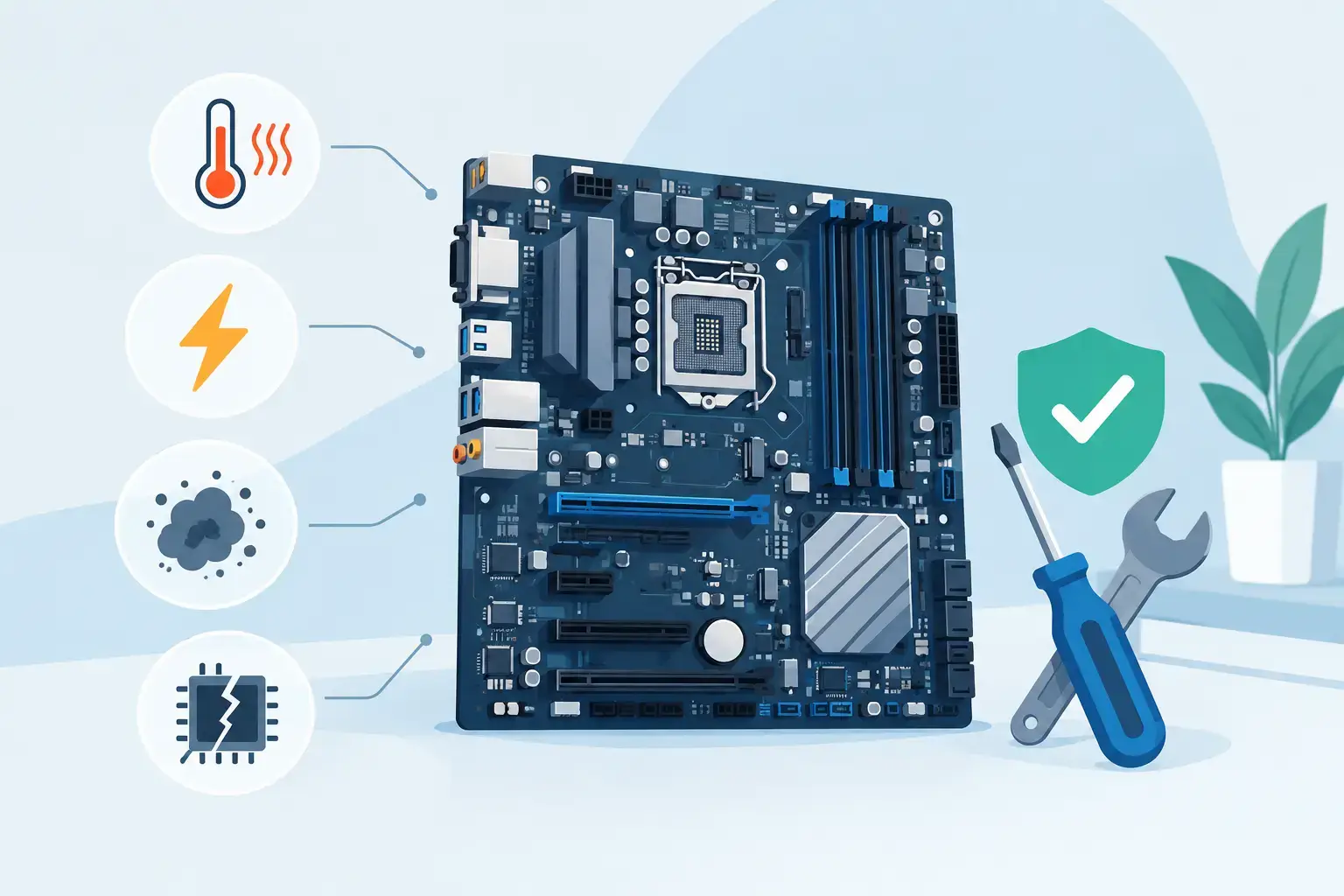
A laptop that suddenly will not charge, display an image, or power on can feel like a total loss – especially when work files, coursework, client information, or family photos are still inside. The top causes motherboard failure are often preventable, but the symptoms can look confusing because the motherboard controls nearly every major function in a laptop, MacBook, desktop PC, or gaming system.
A motherboard fault does not always mean the entire device needs replacement. In many cases, accurate board-level diagnostics can identify a damaged power circuit, shorted component, failed charging controller, or heat-related fault. The key is not to keep forcing the device to start. Repeated power attempts after a liquid spill, overheating event, or electrical surge can turn a repairable issue into a more extensive one.


Why Motherboard Failures Are So Disruptive
The motherboard is the main circuit board that connects the processor, memory, storage, display, charging system, ports, cooling system, and wireless components. When it develops a fault, the result may be obvious, such as a completely dead laptop. It can also be intermittent: random shutdowns, no display with power lights on, USB ports that stop working, battery charging problems, or a device that only starts after several attempts.
Because several components share the same board, the visible symptom is not always the failed part. A laptop that does not charge may have a worn battery, a damaged charger, a faulty charging port, or a motherboard charging circuit problem. Proper diagnosis separates these issues before repair work begins, protecting both your budget and your data.
Top Causes Motherboard Failure in Laptops and PCs
Liquid damage and moisture exposure
Liquid damage is one of the fastest ways to damage a motherboard. Coffee, water, juice, soft drinks, and even small amounts of moisture can bridge electrical contacts and create a short circuit. The real problem does not always happen immediately. A device may appear to work after a spill, then fail days later as corrosion develops around connectors, power chips, and fine board traces.
Humidity and condensation can also create trouble, particularly when a device moves quickly between very cold air conditioning and hot outdoor conditions. If liquid reaches the motherboard, turn the device off, disconnect power, and do not plug it in to “check” whether it works. Drying the exterior is not enough. Internal cleaning and inspection should happen as soon as possible.
Overheating and failed cooling
Heat is a long-term motherboard threat. Laptops naturally run warm, but blocked vents, dust-packed fans, dried thermal paste, and demanding workloads can push temperatures beyond safe limits. Gaming, video editing, virtual meetings, and heavy browser use can all expose a weak cooling system.
Over time, repeated heat cycles stress solder joints and sensitive components. This can lead to random restarts, throttled performance, display faults, freezing, or a machine that starts only when cold. In gaming PCs, poor cable management, insufficient airflow, an undersized cooler, or an overclock that is not stable can create the same risk.
A fan that makes grinding noises, runs constantly at full speed, or never spins should be treated as an urgent repair issue. Cleaning the cooling system and renewing thermal material is far less expensive than waiting for heat to damage the board.
Power surges and incorrect chargers
Unstable electricity, low-quality adapters, damaged charging cables, and sudden power interruptions can harm motherboard power circuits. The charging IC, power MOSFETs, USB-C controller, and other components are designed to manage precise voltage levels. A surge can overwhelm them in seconds.
This is especially common when users replace a lost charger with an adapter that fits physically but does not provide the correct wattage, voltage, or USB-C power delivery profile. A cheap replacement can cause slow charging, battery warnings, or damage over time. For desktops and gaming systems, a failing power supply unit can send unstable power to the motherboard and connected components.
Use a quality surge protector where appropriate, and use a charger that meets your device manufacturer’s specifications. If a device became dead immediately after a power event, unplug it and arrange professional testing rather than trying multiple chargers at random.
Physical impact and flex damage
A dropped laptop can damage far more than the screen or case. Internal board flex can crack solder joints, loosen connectors, or damage tiny components near the charging port, display connector, or memory area. The fault may not be visible from the outside.
MacBooks and slim modern laptops are particularly compact, leaving little room for impact absorption. A device may continue to operate after a fall but later develop display flickering, keyboard issues, charging failures, or random shutdowns. Similarly, excessive pressure from carrying a laptop in an overfilled bag can gradually flex the chassis and stress internal connections.
Age, component wear, and manufacturing defects
Not every motherboard failure is caused by a single accident. Capacitors, power ICs, charging circuits, and other electronic components age. High daily use, heat exposure, and repeated charging cycles accelerate wear. A board can also have a hidden manufacturing weakness that only becomes apparent after months or years.
Older devices may still be worth repairing when the failed section is isolated and the screen, keyboard, storage, and battery remain in good condition. It depends on the device’s age, replacement cost, parts availability, and whether the repair provides reliable long-term value. A diagnostic assessment should explain that trade-off clearly.
DIY repairs and improper upgrades
Replacing an SSD, RAM module, battery, keyboard, or screen can be straightforward on some models, but modern laptops often contain fragile connectors and tightly integrated components. Using the wrong screw, tearing a ribbon cable, touching the board without proper static protection, or reconnecting a battery incorrectly can cause a no-power condition.
Desktop upgrades carry different risks. A CPU installed incorrectly, bent socket pins, a loose GPU, misplaced motherboard standoffs, or poor thermal paste application can cause startup failures or short circuits. BIOS settings can also prevent a system from booting after an upgrade, although that does not necessarily mean the board has failed.
Warning Signs You Should Not Ignore
Motherboard problems rarely announce themselves with a clear message. Watch for a pattern of symptoms, particularly after heat, liquid exposure, a drop, or electrical problems:
- The laptop has no power, no charging light, or only flashes briefly when connected.
- It powers on but shows a black screen, even with a known-working display.
- The battery is detected inconsistently or will not charge with a compatible charger.
- USB ports, Wi-Fi, keyboard backlighting, audio, or other built-in features fail without an obvious software cause.
- The device overheats, shuts down unexpectedly, or restarts under normal workloads.
These symptoms can also come from a battery, screen, SSD, RAM, power supply, or operating system issue. That is why replacing parts based on a guess is risky. A professional technician can test power rails, charging behavior, temperatures, connectors, memory, storage, and BIOS response to find the actual fault.
What to Do When You Suspect a Motherboard Fault
First, protect your data. If the laptop still starts, back up important files immediately to a secure external drive or cloud service. If it will not start, avoid opening it unless you are experienced with the model. Storage recovery may still be possible, but repeated attempts to boot a failing device can worsen an electrical issue.
Next, stop using the device if you notice burning smells, excessive heat, swelling, liquid inside, or a charger that becomes unusually hot. Disconnect the charger and do not leave the device charging unattended. Do not use a hair dryer, place the device in rice, or spray cleaning products into ports. Those approaches can trap residue, introduce more moisture, and damage components.
For business devices, quick action matters even more. A failed workstation may affect customer records, email access, accounting software, shared files, or remote work. A repair plan should consider data protection, temporary replacement equipment, and the fastest route to restoring productive work – not merely whether the device can power on.
Repair or Replace? Make the Decision on Facts
A motherboard repair is often worthwhile when the device is otherwise in good condition and the fault is limited to a charging circuit, power component, corroded area, connector, or BIOS-related problem. It may be less practical when severe liquid corrosion has spread across the board, the device is very old, or several expensive components have failed together.
Before approving a repair, ask for a clear diagnosis, the expected repair scope, data considerations, and whether the system will be stress-tested after the work is complete. A proper repair should include checks for stable charging, temperature control, startup behavior, ports, display output, Wi-Fi, and storage access.
At Trust IT Skills, motherboard concerns are handled through diagnostics rather than assumptions, so you can understand whether repair, component replacement, data recovery, or a system upgrade is the sensible next step. If your laptop or PC is showing early warning signs, act while the fault is still contained. Fast, careful attention can protect your device, your files, and the work you cannot afford to lose.