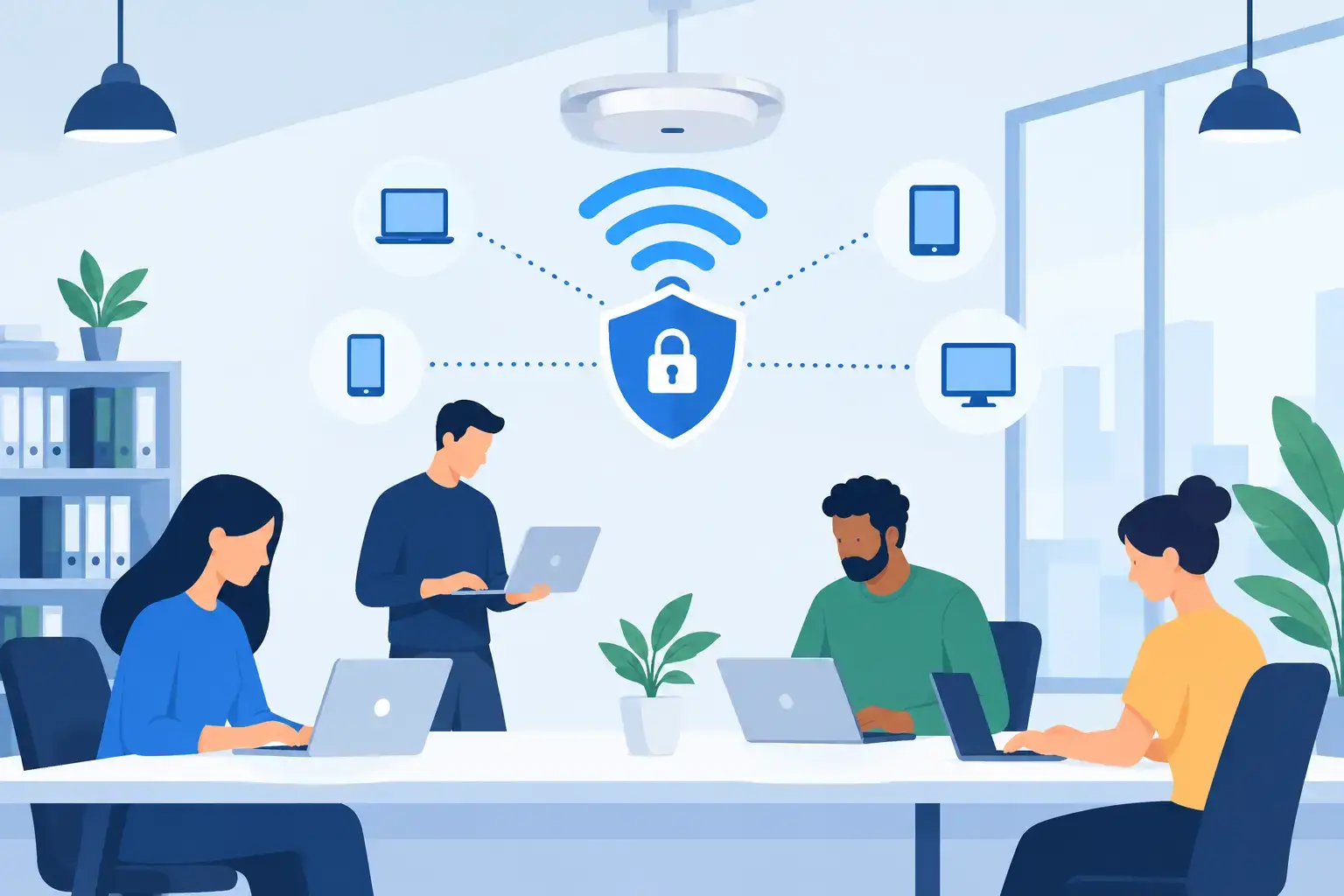
A weak office WiFi setup can expose customer records, cloud accounts, payment devices, and every laptop connected to it. To set up secure office WiFi properly, your business needs more than a new router and a password on the wall. You need a network designed around who connects, what they can access, and how quickly you can respond when something looks wrong.
For a startup, clinic, retail business, or growing office, the goal is simple: staff should be able to work without connection drops, guests should have internet access without reaching company systems, and sensitive data should stay protected. The right setup reduces security risk while preventing the daily frustration of slow meetings, failed uploads, and unreliable cloud applications.


Start With a Clear View of Your Office Network
Before changing WiFi settings, identify every device that needs a connection. That includes employee laptops, desktops, phones, printers, meeting-room displays, IP phones, security cameras, NAS storage, smart TVs, access-control equipment, and point-of-sale terminals.
This inventory matters because not every device should be treated the same way. A staff MacBook accessing Microsoft 365 and internal files needs different permissions than a visitor’s phone. A printer may need to communicate with workstations but should not have unrestricted access to the internet or sensitive systems. Older cameras and smart devices can also become a weak point when they run outdated software.
Map the office layout as well. Concrete walls, glass partitions, server rooms, and crowded work areas affect wireless coverage. One low-cost router placed in a corner may technically provide WiFi, but it will not deliver stable performance or consistent protection across a busy office. Larger spaces often need business-grade access points placed where people actually work.
Use Business-Grade Hardware, Not a Home Router
Consumer routers can be acceptable for a very small temporary setup, but they quickly become difficult to manage as a business grows. A business WiFi system gives you centralized control over access points, network segmentation, updates, user access, and security alerts.
Choose equipment that supports WPA3 security, VLANs or network segmentation, automatic firmware updates, multiple SSIDs, guest isolation, and centralized administration. If WPA3 is unavailable on older laptops or printers, WPA2-AES may be necessary for compatibility. Avoid older WPA, WEP, and WPA2-TKIP modes completely. They are outdated and should not be used in an office.
A firewall should sit between your office network and the internet connection. This provides more control than relying on the security features built into an internet provider’s modem. For teams that use cloud applications, remote desktop access, or VPN connections, firewall configuration deserves careful attention. Blocking unnecessary inbound traffic is one of the most practical ways to reduce exposure.
Place Access Points for Coverage and Capacity
WiFi problems are not always security problems, but poor coverage encourages risky workarounds. Staff may connect to personal hotspots, use an unsecured extender, or move sensitive work onto an unknown network just to finish a task.
Place access points in central work areas rather than hiding them inside cabinets, above metal ceilings, or next to electrical equipment. For offices with several rooms, use multiple managed access points instead of stacking cheap repeaters. Repeaters can reduce speed and make troubleshooting harder, especially when video calls and cloud backups are running at the same time.
Separate Staff, Guest, and Device Networks
One of the most effective ways to set up secure office WiFi is to create separate networks. This is called network segmentation. It limits what a connected device can see and reach, reducing the damage if one device is compromised.
At a minimum, create distinct networks for employees, guests, and business devices such as printers, cameras, or smart equipment. Your guest WiFi should provide internet access only. It should not be able to discover staff laptops, shared folders, printers, network storage, or management dashboards.
For many small businesses, these separate networks can use different SSIDs, such as a private staff network, a guest network, and an IoT or device network. Behind the scenes, VLAN rules keep traffic separated even though the networks use the same internet connection.
Do not share the staff password with every visitor, contractor, or former employee. Guest access should be easy to change and should not affect the internal network when it needs to be reset. If your WiFi platform supports a guest portal, time-limited codes, or bandwidth controls, use them where appropriate. A clinic may want tighter guest access than a creative studio, while a retail business may need reliable public access without affecting payment terminals.
Secure Authentication and Password Management
A password such as the office name plus “123” is not protection. Use long, unique WiFi passwords and store them in an approved password manager rather than sending them repeatedly in chat messages or email.
For small offices, a strong WPA3 or WPA2-AES passphrase may be practical if it is changed when employees leave or when a password is exposed. For larger teams, WPA2/WPA3 Enterprise with individual user accounts is the better option. It allows each employee to authenticate separately, so access can be removed for one person without forcing the whole office to reconnect.
Your WiFi administrator account also needs protection. Change default router and access-point login credentials immediately. Use multi-factor authentication for cloud-managed network portals whenever it is available, and restrict administrative access to authorized staff or your IT support provider.
The following settings should be part of the baseline configuration:
- Enable WPA3 where compatible, or WPA2-AES when legacy devices require it.
- Disable WPS, which can make wireless access easier to attack.
- Turn off remote management from the public internet unless there is a controlled business need.
- Use separate administrator accounts instead of sharing one generic login.
- Set automatic firmware updates or schedule regular update checks.
Keep Firmware, Laptops, and Security Tools Current
A secure network can still be undermined by an unpatched laptop, an old printer, or a router running years-old firmware. Manufacturers release updates to fix known security issues, improve stability, and support newer devices. Delaying updates for too long gives attackers more opportunity to exploit common weaknesses.
Schedule updates outside business hours where possible, especially for firewalls, access points, and systems supporting payment or customer services. Updates can occasionally cause compatibility issues, so back up current configurations first and confirm that critical devices reconnect normally afterward.
Employee devices need the same attention. Keep operating systems, browsers, endpoint protection, and business applications updated. Require screen locks, disk encryption, and strong sign-in methods on work laptops. If a laptop is lost from a car, café, or shared workspace, device security should protect company data even before IT can remove its network access.
Monitor the Network Before a Small Issue Becomes Downtime
Office WiFi security is not a one-time installation job. New staff join, devices change, passwords get shared, and equipment reaches end of life. Regular monitoring helps you identify unknown devices, repeated failed login attempts, unusual data usage, weak signal areas, and access points that are no longer receiving updates.
Review connected devices periodically. If you see an unfamiliar phone, computer, or smart device, investigate it instead of assuming it belongs to someone in the office. Remove unused devices and old user accounts promptly. A former employee’s laptop should not remain trusted simply because its WiFi profile still works.
Keep a simple record of your network equipment, SSIDs, administrator contacts, internet provider details, and recovery procedures. Store this information securely. During an outage, this documentation saves time and helps technicians restore service without guessing which device controls what.
Plan for Internet Failure and Sensitive Work
Security also includes business continuity. If your office depends on cloud accounting, online bookings, VoIP calls, or remote support, consider a backup internet connection such as a secondary broadband line or managed 5G connection. It may not provide full office capacity, but it can keep essential work moving during an outage.
Some businesses need additional controls. Clinics handling patient data, finance teams, legal offices, and companies with remote staff may need VPN access, stricter firewall rules, secure file permissions, and formal access policies. The right level of security depends on the data you hold and the consequences of an interruption. More controls can add complexity, so they should be configured in a way that staff can actually follow.
Trust IT Skills can assess office coverage, configure secure staff and guest networks, connect workstations and printers, and provide ongoing support for businesses that need a reliable technical partner in Dubai. The best time to fix weak office WiFi is before an unknown device, failed router, or exposed password stops your team from working.