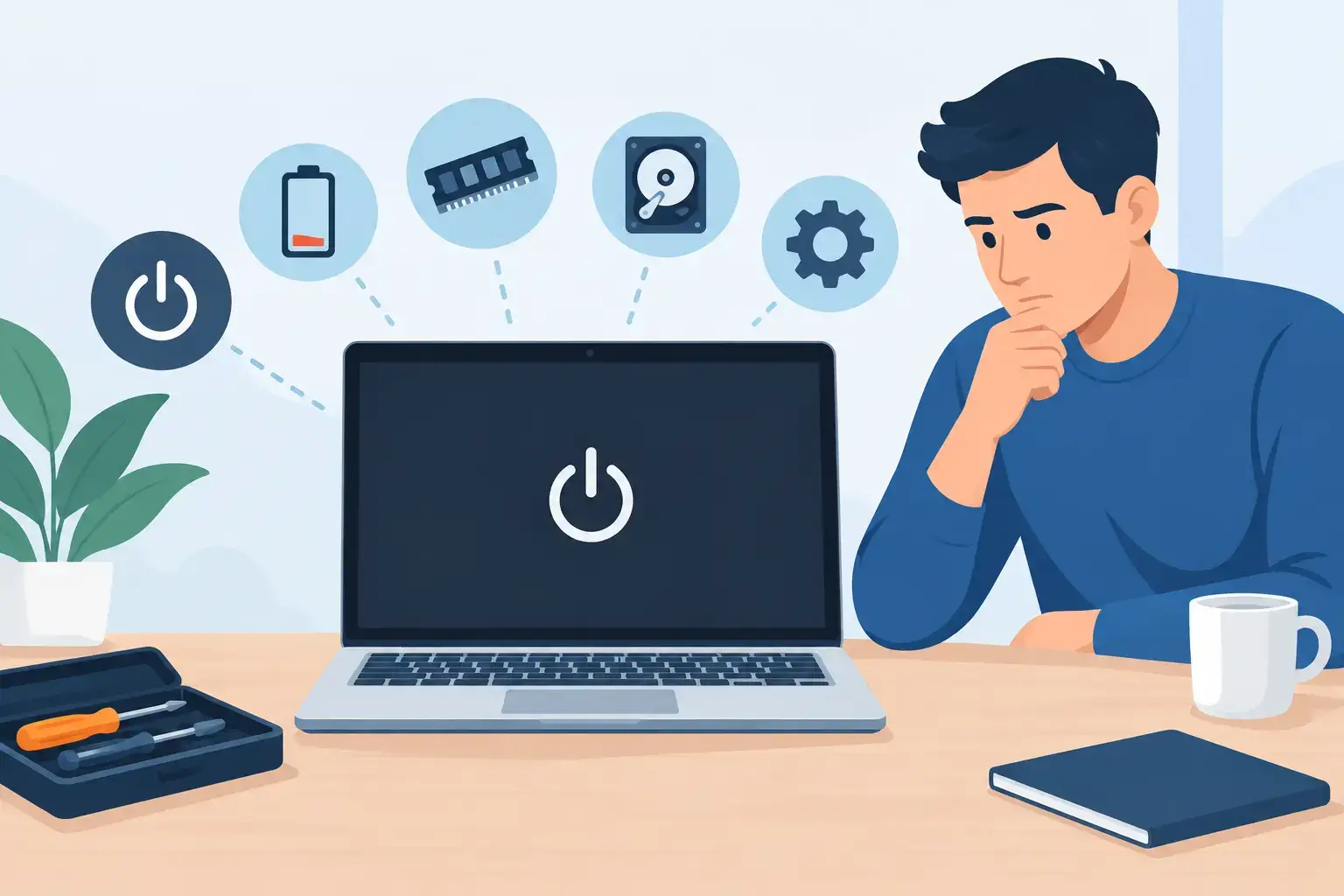
A laptop that will not start can look completely dead, even when the fault is limited to a charger, battery, display, or corrupted startup file. The fastest way to diagnose laptop startup failures is to identify exactly where the startup sequence stops. Does the charging light come on? Do fans spin? Does the keyboard light up? Is there an image on an external screen? Each answer points toward a different repair path and helps protect your data from unnecessary risk.
Before opening the laptop or repeatedly forcing it to restart, stop and observe. A few careful checks can separate a simple power problem from a deeper motherboard, storage, or operating-system failure.

Start With the Type of Startup Failure
“Not starting” can mean several different things. A laptop with no lights and no sound has a different issue from one that powers on but shows a black screen. Likewise, a device that reaches the manufacturer logo but never loads Windows or macOS is usually dealing with storage, system files, or configuration rather than a failed screen.
Start by placing the symptom into one of these practical categories:
- No power at all: no LEDs, fan movement, keyboard light, or screen activity.
- Powers on but no display: lights or fan activity are present, but the built-in screen remains black.
- Starts then shuts down: the laptop may power off within seconds, restart in a loop, or stop under load.
- Reaches logo but will not load the operating system: the device may show a spinning circle, recovery screen, folder icon, or boot-device error.
- Starts with warning signs: beeps, flashing LED codes, clicking sounds, overheating, or a liquid-damage history.
Do not assume a black screen means the laptop has failed completely. On many Dell, HP, Lenovo, Asus, Acer, MSI, Surface, and MacBook models, the system may be running while the display, display cable, graphics output, or backlight has failed.
Check Power Before Blaming the Laptop
A failed charger, damaged cable, loose DC jack, or weak USB-C power adapter can produce symptoms that resemble a motherboard problem. Use the original charger where possible, and inspect the cable and connector for fraying, bends, heat marks, or looseness. If the laptop charges through USB-C, test another known-good, compatible high-wattage adapter. A low-power phone charger may light an indicator but still be unable to start the laptop.
Disconnect all accessories before testing. Remove USB drives, docking stations, external monitors, SD cards, printers, and gaming peripherals. A faulty device or a USB drive configured as a boot device can prevent normal startup.
Then perform a power reset. Unplug the charger, disconnect removable batteries if the model allows it, and hold the power button for 20 to 30 seconds. Reconnect only the charger and try again. This can clear residual electrical charge and resolve some power-controller lockups.
If there are still no signs of life, check the charging indicator. No charging light may point to the adapter, charging port, battery circuit, or motherboard power rail. A blinking or unusual color pattern can be diagnostic on some brands, so note the pattern before trying more restarts.
Diagnose Laptop Startup Failures When It Powers On but Shows No Image
If fans spin, LEDs light up, or the keyboard backlight responds, the laptop is receiving power. The next question is whether the issue is the screen or the system itself.
Increase the screen brightness first. It sounds basic, but brightness controls can be changed accidentally, especially after connecting to an external display. Next, connect the laptop to a known-working monitor or TV using the correct HDMI, DisplayPort, or USB-C connection. If the external display works, the likely fault is within the laptop display assembly: the LCD panel, backlight, display cable, hinges causing cable damage, or graphics routing.
Listen for normal startup behavior. You may hear the Windows login sound, a Mac startup chime on supported models, notification sounds, or fan speed changes after a minute. These clues suggest the operating system is loading and the screen needs repair rather than the motherboard or SSD.
If both internal and external displays stay blank, try entering BIOS or UEFI. Turn the laptop on and repeatedly press the relevant key, often F2, F10, F12, Delete, or Esc on Windows laptops. Apple silicon MacBooks use a different process: hold the power button until startup options appear. If BIOS does not appear on any screen, the problem may involve memory, graphics, firmware, or the motherboard.
Watch for Beeps, LED Codes, and Heat
Manufacturers often build basic hardware diagnostics into their laptops. Repeating beeps or flashing patterns can indicate memory, CPU, display, BIOS, or power faults. Count the flashes or beeps, including pauses between them. A technician can use that pattern alongside the exact model number to narrow down the failed component.
Heat is another useful clue. A laptop that starts, becomes very hot within seconds, and switches off may have a blocked fan, failed cooling system, dried thermal compound, shorted component, or motherboard issue. Do not keep restarting an overheating laptop. Repeated thermal shutdowns can worsen instability and place storage data at risk.
Liquid exposure changes the priority. Even if the spill happened days ago and the laptop seemed fine initially, corrosion can develop around the keyboard, battery connector, display circuit, or motherboard. Avoid charging or powering on a laptop with recent liquid damage. Proper inspection and board-level cleaning are safer than hoping it dries out on its own.
When the Logo Appears but Windows or macOS Will Not Load
A laptop that reaches its logo has completed much of its basic hardware startup process. The fault is more likely to be the operating system, SSD or hard drive, boot configuration, or a recent update. Common signs include “No bootable device,” automatic repair loops, a blue screen, a flashing folder on a MacBook, or a system that freezes at the logo.
Enter BIOS or UEFI and check whether the internal SSD is detected. If the drive does not appear, it may have failed, become disconnected, or have a controller problem. If it appears but will not boot, do not immediately reinstall the operating system. Reinstallation can overwrite recoverable files if the drive is unstable or if the wrong partitions are selected.
Try built-in recovery options first. Windows Startup Repair, Safe Mode, System Restore, and uninstalling a recent update can resolve software-related boot failures. On a Mac, Recovery Mode can run Disk Utility, reinstall macOS, or check startup disk health. These steps are useful only if the storage device is healthy enough to read consistently.
Clicking hard drives, repeated repair loops, extremely slow loading, and disappearing SSDs are warning signs of storage failure. Prioritize data recovery before aggressive repair attempts. This matters for students with assignments, professionals with local work files, and businesses storing documents outside cloud backup.
Avoid the Common Fixes That Create Bigger Problems
Repeated forced shutdowns can corrupt files when the laptop is stuck during an update or disk repair. Constantly reseating parts without anti-static precautions can cause additional damage. Installing a random BIOS update is also risky: firmware must match the exact model and should not be interrupted.
Be careful with online advice that recommends disabling security settings, changing BIOS options blindly, or replacing the battery without testing charging voltage. A battery can be faulty, but a new battery will not fix a failed charging circuit. Similarly, replacing an SSD will not solve a black-screen fault caused by RAM, graphics, or a motherboard power issue.
If your laptop still powers on intermittently, back up critical files immediately. Use cloud storage, an external drive, or a professional data recovery process depending on the device condition. Intermittent startups often become complete startup failures without warning.
Know When Professional Diagnostics Are the Better Option
Professional testing is the sensible next step when there is no power with a verified charger, liquid damage, burning smell, repeated shutdowns, BIOS corruption, missing storage, or a suspected motherboard fault. These issues require more than a visual check. Accurate diagnosis may involve adapter testing, battery health checks, RAM testing, thermal inspection, SSD health analysis, BIOS configuration, and motherboard-level power-rail measurements.
For urgent work or study needs, ask about data protection before authorizing an operating-system installation or storage replacement. A clear repair process should explain what has failed, whether your files are accessible, what repair is recommended, and what the expected turnaround will be. Trust IT Skills can assess multi-brand laptop and MacBook startup faults in Dubai and help keep disruption low, including temporary laptop options when a longer repair is necessary.
A startup failure is stressful because it stops everything at once. Start with the power source, identify the last point the laptop reaches, and avoid actions that could overwrite data or worsen a hardware fault. The right diagnosis turns a vague “dead laptop” into a specific, fixable problem.