

A new graphics card can turn an aging PC into a capable gaming, editing, or design machine. But GPU installation is not simply a matter of opening the case and clicking a card into place. A GPU that does not match the power supply, case clearance, motherboard, or cooling setup can cause crashes, black screens, overheating, or failure to start.
For gamers, students, remote workers, and professionals, the goal is not just higher frame rates. It is a stable computer that starts properly, stays cool under load, and supports the applications you depend on without risking your data or other components.


Check Before GPU Installation
The most common installation problems begin before the card ever reaches the PCIe slot. Graphics cards vary widely in length, thickness, power draw, and connector requirements. A card may technically fit a motherboard but still be unsuitable for the PC as a whole.
Start by checking the physical dimensions of the GPU against the available space inside the case. Measure from the rear expansion slots to any front-mounted fans, radiator, drive cage, or cable bundle. Also check its thickness. Many current GPUs take up two-and-a-half or three expansion slots, which can block nearby PCIe slots or sit close to the bottom of a compact case.
Then inspect the power supply unit. Look for its rated wattage, age, brand quality, and available PCIe power connectors. A system with a higher-end GPU, power-hungry CPU, several storage drives, and liquid cooling may need considerably more headroom than a basic office PC. Wattage alone is not the whole story. An older or low-quality power supply can become unstable even if its label appears to meet the requirement.
Your motherboard also needs a full-length PCIe x16 slot. Most desktop motherboards have one, and modern PCIe standards are generally backward compatible. However, small-form-factor systems, prebuilt office PCs, and slim desktop cases often have proprietary layouts or low-profile expansion slots. These systems need careful assessment before buying any graphics card.
Check Your Display Connections
Confirm that your monitor supports one of the ports on the new GPU, such as HDMI, DisplayPort, or USB-C where available. If you use multiple monitors, verify the number of outputs and the refresh rate or resolution supported by each connection.
After the upgrade, connect the monitor cable directly to the graphics card, not to the motherboard video output. This small detail is responsible for many calls about a PC that appears to have a black screen after a successful installation.
Prepare the PC Safely
Before opening the case, shut down Windows completely, switch off the power supply, and unplug the power cable. Press and hold the power button for several seconds to discharge remaining electricity. Work on a hard, clean surface rather than carpet, and ground yourself by touching an unpainted metal part of the case before handling components.
Back up important files before a major upgrade. GPU installation should not affect your storage drive, but any work inside a computer carries some risk, especially where older systems, loose cables, dust buildup, or power issues are involved. Businesses should also confirm that current cloud backups are working before hardware changes are made to essential workstations.
Remove the side panel and take a quick look inside. Dust around intake fans, CPU coolers, and power supply vents restricts airflow. If the system is already running hot, fitting a more powerful graphics card without addressing cooling can make the problem worse. Clean the dust carefully with compressed air and make sure all fans can spin freely.
How GPU Installation Works
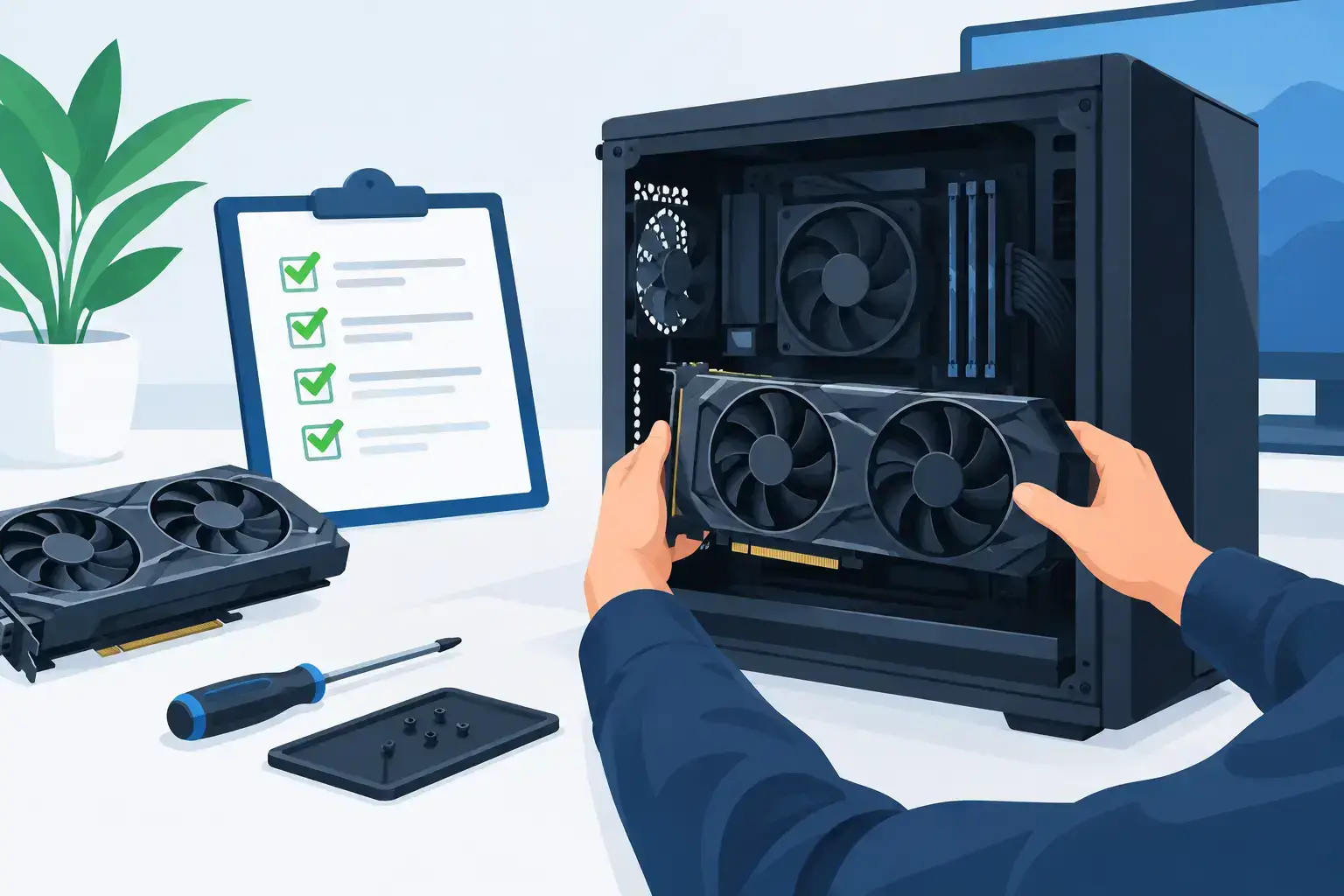
First, remove the old card if one is installed. Disconnect any PCIe power cables from it, remove the screws holding its bracket to the rear of the case, and press the release tab at the end of the motherboard PCIe slot. Pull the card straight out with even pressure. Do not force it or twist it against the motherboard.
For the new card, remove the required rear expansion-slot covers. Line up the GPU with the top PCIe x16 slot, which is usually the preferred slot for the best performance. Press down firmly and evenly until the card is fully seated and the retention clip locks into place.
Secure the card to the case with screws. A large GPU can sag over time, placing stress on the PCIe slot. If the card includes a support bracket or stand, use it. Proper support is especially useful for larger cards used in gaming PCs, 3D workstations, and video-editing systems.
Connect the PCIe power cables required by the GPU. Some cards use one or more 6-pin or 8-pin connectors, while newer models may use a 12VHPWR or 12V-2×6 connector. Use dedicated cables from the power supply where possible. Do not use damaged adapters, force a connector, or sharply bend a newer high-power connector close to the plug. It must sit fully inserted and remain secure.
Before closing the case, check that cables are not touching fan blades and that airflow is not blocked. Clean cable management is not only cosmetic. It helps air move through the case and makes future service easier.
Driver Setup After GPU Installation
Once the system is reassembled, reconnect the power cable and start the PC. The first startup may take a little longer than normal while the system detects the new hardware. If you get no display, check the monitor input, video cable location, GPU power connectors, and whether the card is fully seated.
Windows may install a basic display driver automatically, but this is not enough for dependable performance. Install the correct driver from the GPU manufacturer, then restart the computer. The current driver provides game optimization, stability fixes, proper resolution options, and support for hardware acceleration in creative and professional software.
If you are replacing a GPU from a different manufacturer, old driver files can sometimes create conflicts. Symptoms include flickering, repeated crashes, poor performance, missing display settings, or applications that refuse to use the new card. In those cases, a clean driver removal and reinstall is usually the right approach.
After the driver is installed, set the monitor to its intended resolution and refresh rate. A 144 Hz or 165 Hz monitor can remain stuck at 60 Hz until this setting is changed. For a work PC, check hardware acceleration in software used for CAD, editing, rendering, or data visualization.
Test Stability, Temperatures, and Power
Do not assume the job is complete because Windows reaches the desktop. Run a game, benchmark, or graphics-heavy application for 20 to 30 minutes while monitoring temperatures, fan behavior, clock speeds, and system stability.
A GPU temperature that rises under load is normal. Constant throttling, excessive noise, sudden shutdowns, image artifacts, or a burning smell are not. Shut the computer down immediately if you notice electrical odor, sparking, or repeated power loss. Those signs can point to a faulty graphics card, failing power supply, poor connector seating, or an airflow problem.
Watch for these practical warning signs after the upgrade:
- The PC restarts or shuts down during games or rendering tasks.
- The monitor loses signal when the GPU is under load.
- Fans run at maximum speed while performance drops.
- Colored dots, lines, flickering, or corrupted textures appear on screen.
- The GPU is physically sagging or its power cable is under pressure.
Not every issue means the new card is defective. A BIOS update, memory instability, inadequate power supply, outdated chipset driver, or blocked case airflow can produce similar symptoms. Accurate diagnosis prevents unnecessary part replacement.
When Professional GPU Installation Is the Better Choice
A straightforward upgrade is realistic for an experienced desktop user with a standard case and a compatible power supply. It becomes more complicated with compact PCs, high-end GPUs, custom liquid cooling, multiple drives, older motherboards, or systems that already have overheating or startup issues.
Professional installation is also sensible when the computer is used for business, study deadlines, client work, or competitive gaming. The cost of downtime can be higher than the cost of getting the hardware assessed and configured correctly. A technician can verify compatibility, inspect power delivery, update BIOS settings if needed, install drivers, test thermal performance, and keep internal cables organized.
Trust IT Skills supports GPU upgrades and gaming PC optimization with compatibility checks, cooling assessment, BIOS configuration, cable management, and stability testing. For customers in Dubai who need their computer working quickly, that means addressing the full system rather than treating the graphics card as an isolated part.
A graphics card should make your PC feel faster, not introduce a new set of faults. Choose the right component, give it clean power and adequate airflow, and test it properly before relying on it for your next match, meeting, project, or deadline.